
Showcase Video
Project Overview
This project was developed as part of my User Interface Design and Implementation module. The aim of the module was to research, design, prototype, and implement a complete game UI while considering usability, readability, player feedback, accessibility, and visual style.
The project combined UI research, information architecture, wireframing, Unreal Engine implementation, asset integration, audio feedback, accessibility testing, and final polish.
My work focused on designing a complete RPG-style interface, including:
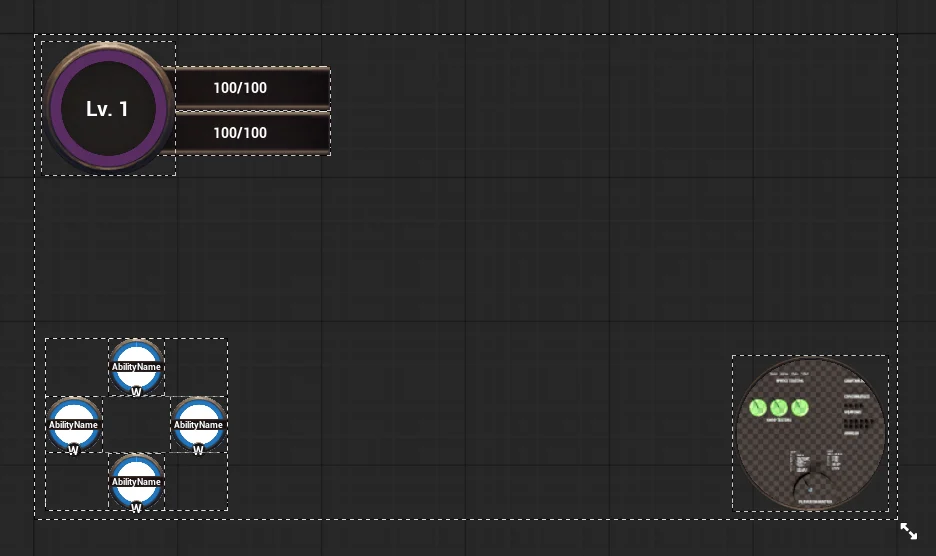
- player HUD
- health, stamina, and mana bars
- ability buttons and cooldowns
- mini map
- player inventory
- item hover-over information
- text tooltips
- main menu
- pause menu
- options menu
- controls menu
- UI sounds
- font implementation
- options saving through Game Instance
The final design direction was a traditional RPG-style UI mixed with comic-style icons, borders, and text elements. I chose this because the traditional RPG structure supports readability and familiarity, while the comic-style presentation gives the UI more personality.
Project Details
Module: User Interface Design and Implementation
Engine: Unreal Engine
Role: UI Designer / UI Implementer
Development Focus: HUD design, menu design, inventory UI, ability UI, accessibility, usability, feedback, UI implementation
Style Direction: Traditional RPG UI with comic-style visual elements
Main Skills Used: Wireframing, research, UI layout, Blueprint widgets, anchors, data-driven UI, accessibility testing, UI polish
Design Goals
My main goal was to create a UI that was both functional and visually interesting.
I wanted the interface to:
- be clear and readable during gameplay
- support a top-down RPG experience
- use familiar RPG UI conventions so players understand it quickly
- include enough style to avoid feeling plain or generic
- give useful feedback through visuals, sounds, and tooltips
- work across different screen sizes using anchors and layout containers
- consider accessibility, especially readability and colour blindness
- connect properly to the gameplay systems behind it
A big part of this project was learning that UI is not just about how things look. It is about how information is presented to the player and how easily the player can understand and use that information.
Early Framework Exploration
At the start of the module, I explored the provided Unreal Engine framework to understand how the existing systems were structured.
The player’s health, stamina, and mana were stored inside a BPC_Attributes Actor Component attached to the base character Blueprint. The player character then inherited from this base character, which allowed the attribute system to be reused.
The ability system used ability Blueprint classes containing variables such as:
- ability name
- ability description
- cast time
- cooldown time
- mana cost
- ability ID
- cooldown state
- image icon
- damage amount
- area-of-effect range
- cooldown timer
- ability thumbnail style
These abilities connected to a BPC_Abilities Actor Component on the player, which controlled which abilities could be spawned and used.
I also explored the inventory framework. Items were stored as Blueprint classes containing data such as:
- item name
- description
- item thumbnail
- item image
- item mesh
- stack limit
- whether the item is stackable
- whether it can be used
- use command
- item type
- rarity
- value
- weight
- crafting recipe
This item data connected to an item data struct, which was then used by the player’s BPC_Inventory component. The shop inventory used a separate BPC_Shop component but shared the same item struct.
Exploring the framework helped me understand that UI elements are not separate from gameplay systems. A good UI needs to read and display real data from attributes, abilities, inventory, items, shops, and player progression.
Framework Bug Investigation
While testing the framework, I noticed a bug with ability one. When pressing Q, the projectile did not spawn the first time. When pressing the ability again, the projectile spawned, but at the wrong time.
This was useful because it showed me how closely UI, input, cooldowns, ability logic, and gameplay feedback are connected. If an ability appears ready in the UI but does not work correctly in-game, the player experience breaks.
This helped me understand that UI testing is not only about checking whether widgets appear correctly. It is also about checking whether the interface accurately represents what the game systems are doing.
UI Theory: The 3 U’s
Early in the module, I explored the 3 U’s of interface design:
- Usability — how easy the UI is to understand and use
- Utility — how useful the UI is for the player’s goals
- User Experience — how the UI feels as part of the whole game
This helped shape how I evaluated existing games and my own work.
For example, a menu can look visually impressive but still fail if it is hard to navigate. Equally, a HUD can be simple but effective if it gives the player exactly the information they need at the right time.
This became one of the main ideas behind my project: every UI element should have a clear purpose.
UI Types Research
I researched different types of UI to understand how interface information can be presented in different ways.
Diegetic UI
Diegetic UI exists inside the game world and can be understood by both the player and the character.
A strong example is Dead Space, where Isaac’s health is displayed on his suit. This improves immersion because the information feels like part of the world.
Non-Diegetic UI
Non-diegetic UI is visible to the player but does not exist inside the game world.
Examples include:
- health bars
- ammo counters
- mini maps
- pause menus
This type of UI is often very practical because it gives information quickly and clearly.
Meta UI
Meta UI uses effects on the screen to communicate the player’s state.
Examples include:
- blood on the screen
- red flashing edges
- screen blur
- low-health effects
This helps create emotional and immediate feedback.
Spatial UI
Spatial UI exists within the game space but is usually attached to objects, characters, or locations.
Examples include:
- icons above quest givers
- enemy health bars
- objective markers
- NPC name labels
This research helped me understand that UI can support immersion, clarity, feedback, or navigation depending on how it is used.
Research Into Existing Games
A major part of this project was researching how different games use UI to support different player experiences.
I looked at games across several genres, including RPGs, stealth games, survival games, action games, MMOs, shooters, and narrative games.
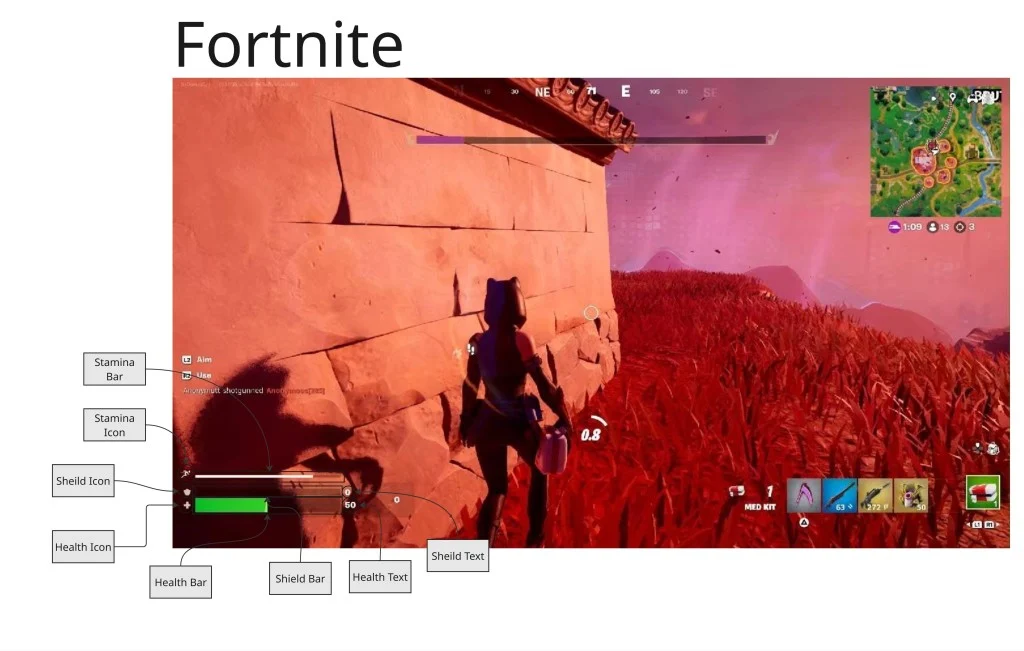
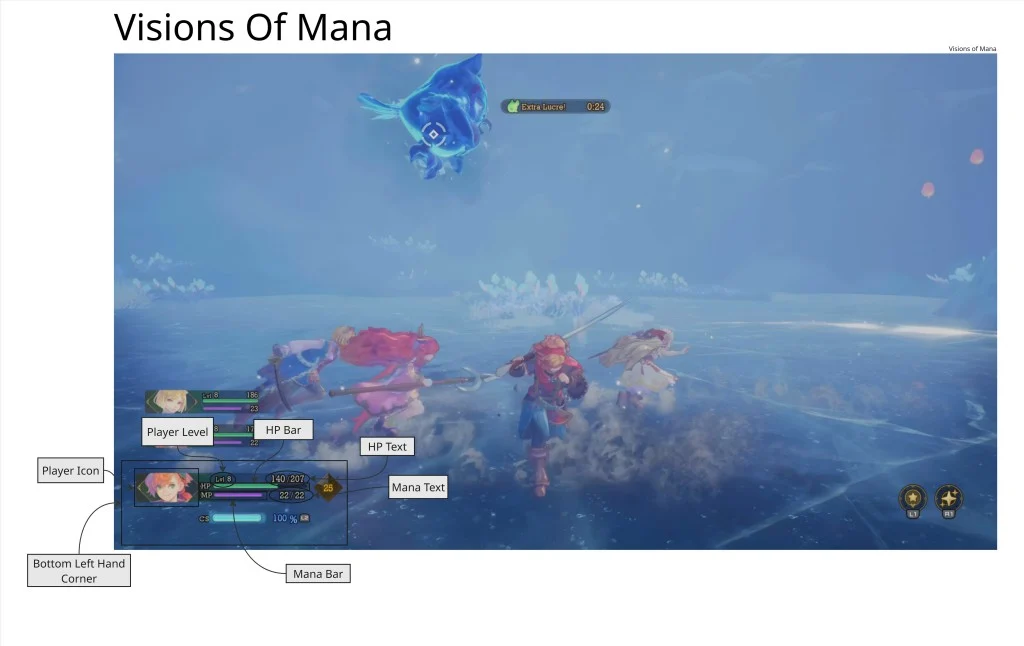
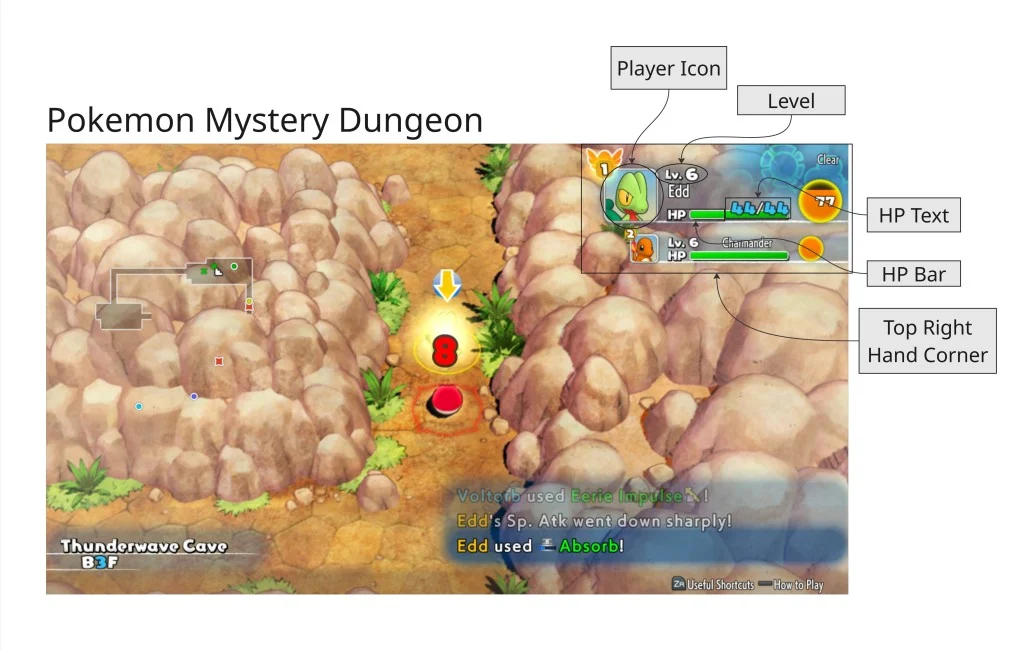
Player Vitals Research
I compared player vitals in games such as Pokémon Mystery Dungeon, Visions of Mana, and Fortnite.
In Pokémon Mystery Dungeon, vitals support survival and resource management because the player has to manage both health and the Belly meter.
In Visions of Mana, vitals are more connected to combat flow, showing health, MP, and extra combat gauges that help the player understand when stronger abilities are available.
In Fortnite, health and shield are designed for speed and clarity because players need to react quickly during fights.
This helped me understand that health and resource displays should match the pace of the game. For my own RPG-style UI, this meant health, stamina, and mana needed to be clear, readable, and always available during gameplay.
Ability Bar Research
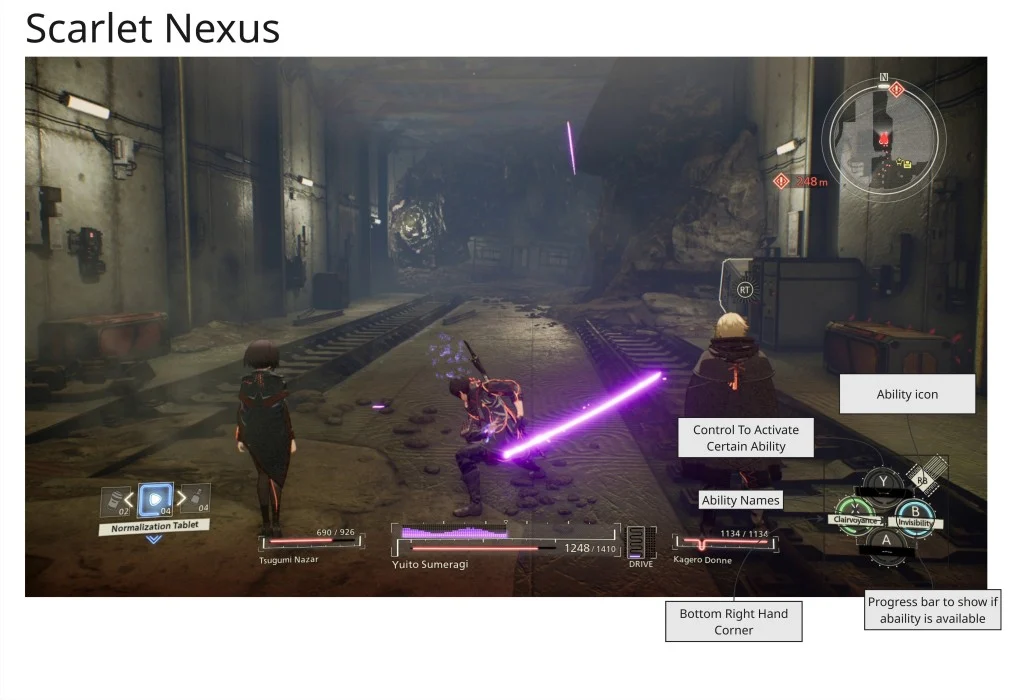
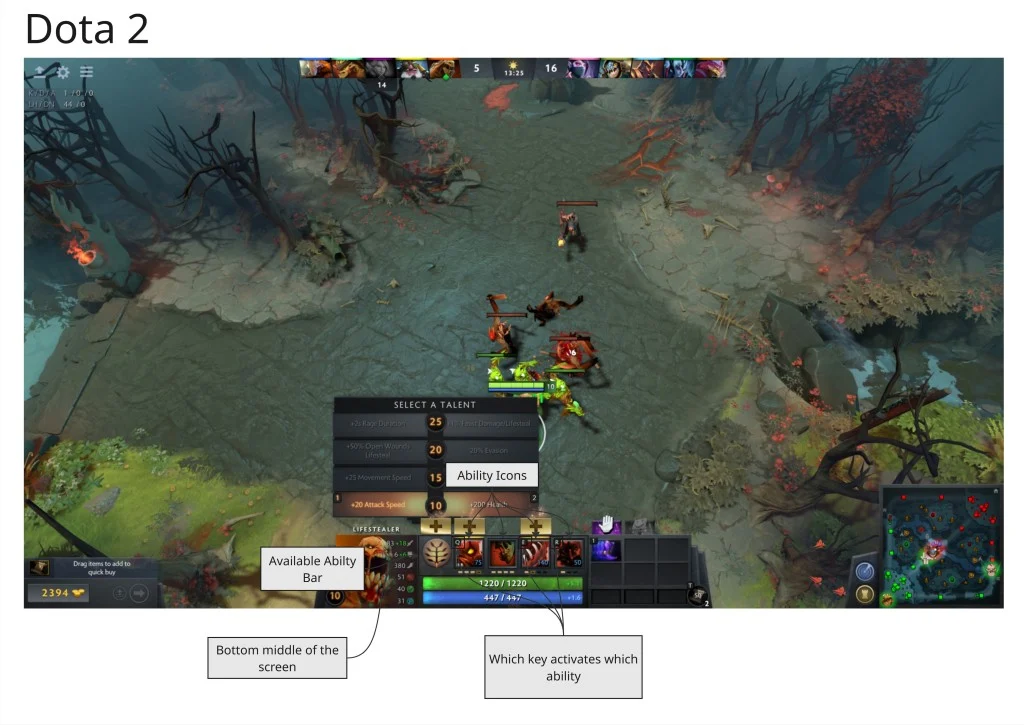
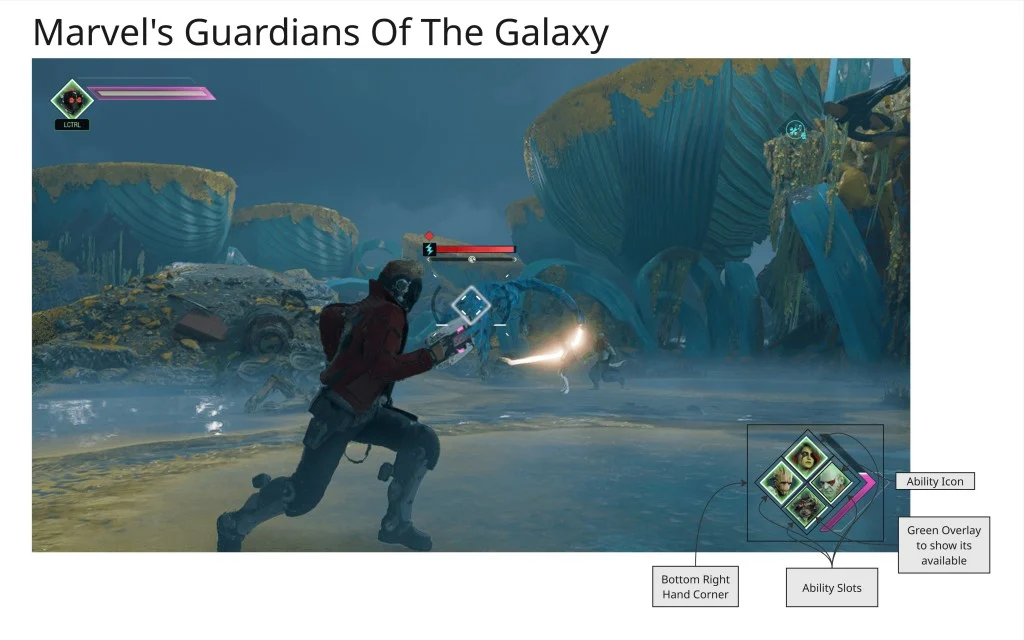
I researched ability UI in Scarlet Nexus, Dota 2, and Marvel’s Guardians of the Galaxy.
In Scarlet Nexus, the ability UI supports fast combat and switching between powers.
In Dota 2, the ability bar is information-heavy because the player needs exact information about cooldowns, mana costs, and ability availability.
In Guardians of the Galaxy, the ability system is built around team commands and slows time so the player can make decisions.
This showed me that ability UI needs to communicate more than just icons. It needs to show readiness, cost, input, and purpose clearly.
This directly influenced my own ability buttons, where I included:
- ability icon
- ability name
- key input icon
- cooldown progress
- ability tooltip
- mana cost information
Mini Map Research
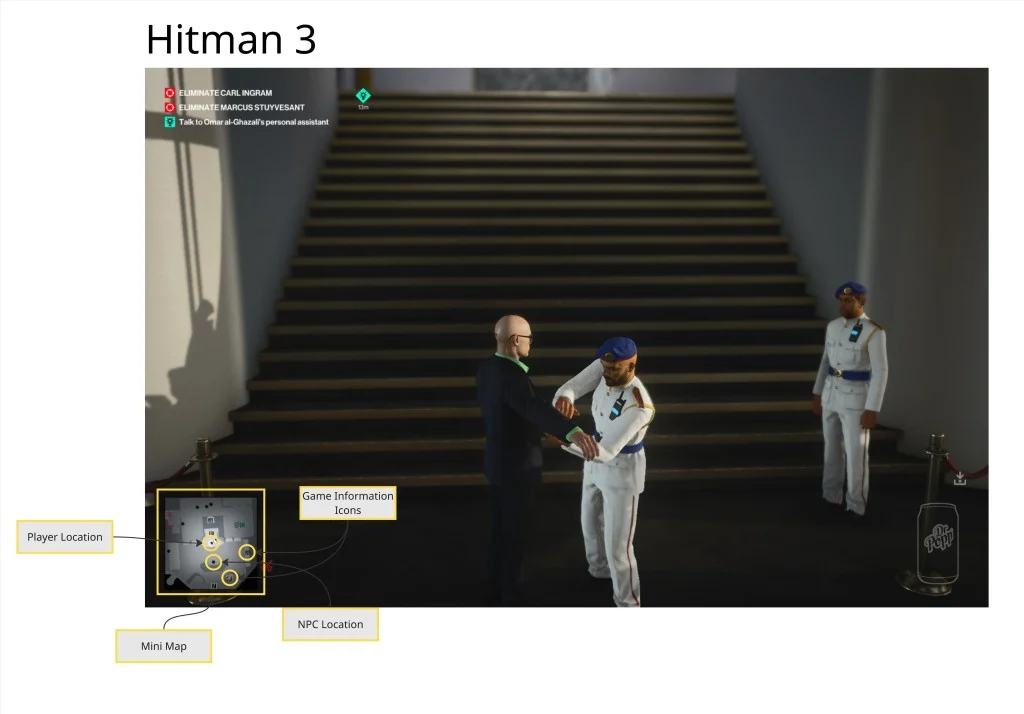
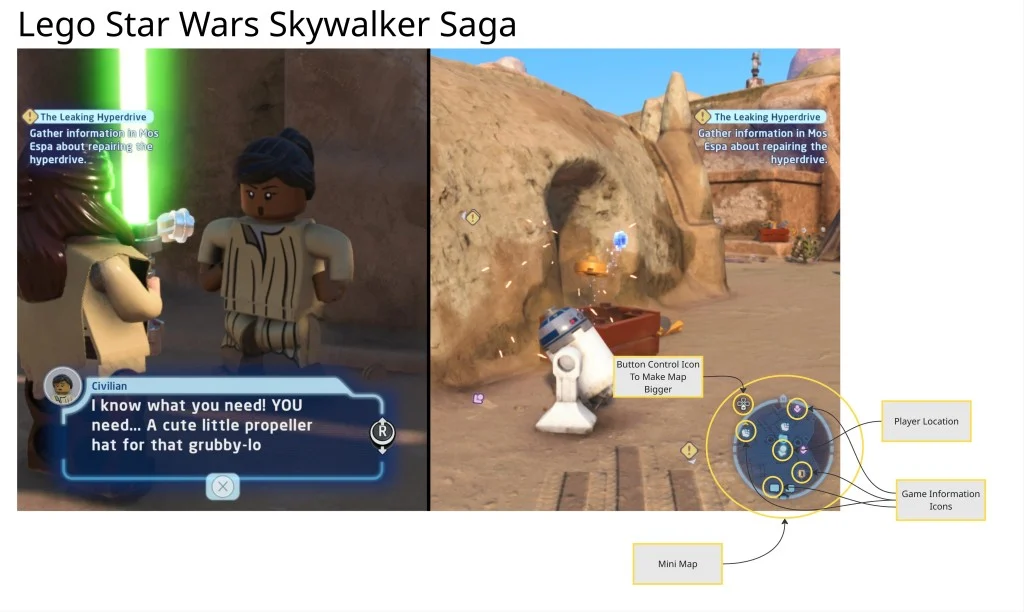
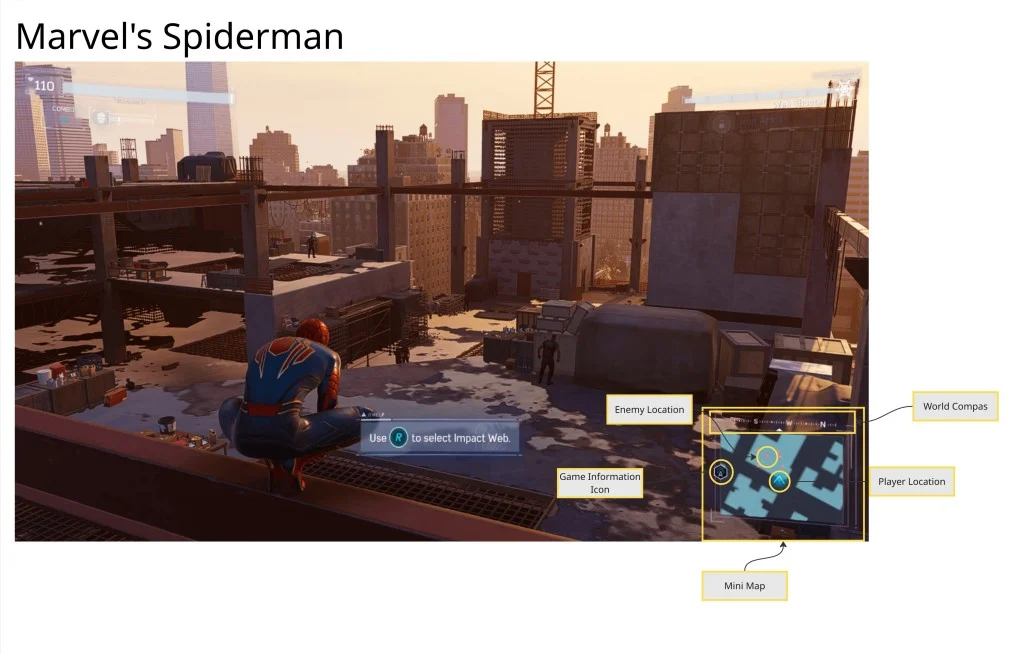
I compared mini maps in Hitman 3, LEGO Star Wars: The Skywalker Saga, and Marvel’s Spider-Man.
In Hitman 3, the mini map supports stealth and tactical planning.
In LEGO Star Wars, the mini map supports exploration, collectibles, and navigation.
In Spider-Man, the mini map supports speed, traversal, and quick orientation.
This helped me understand that a mini map should match the gameplay it supports. For my project, I wanted the mini map to help the player understand nearby enemies, shops, and quest givers without making the screen too busy.
Inventory Research
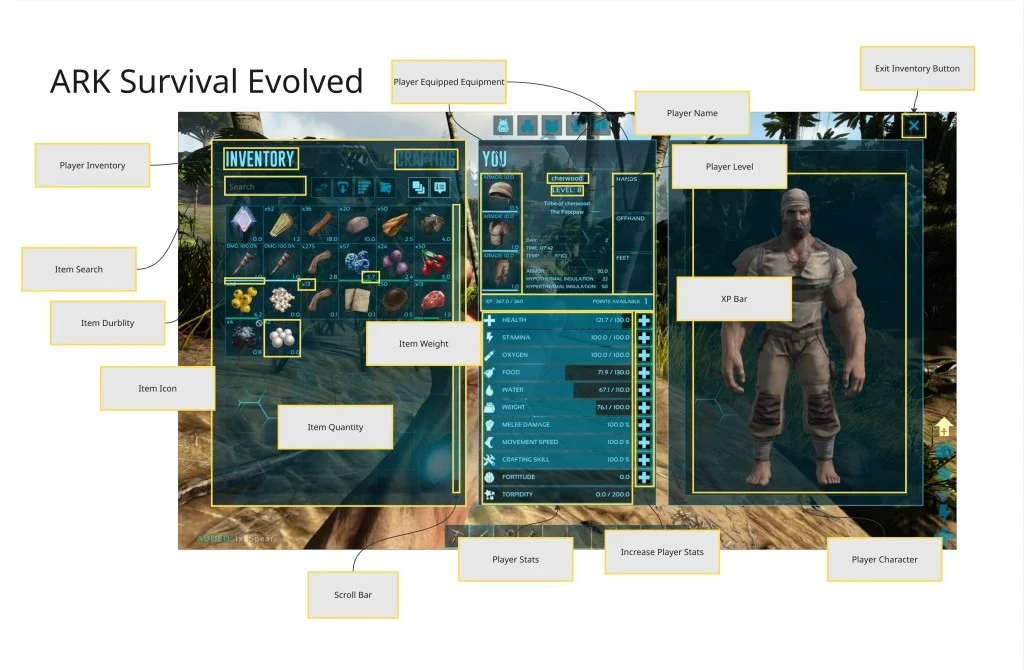
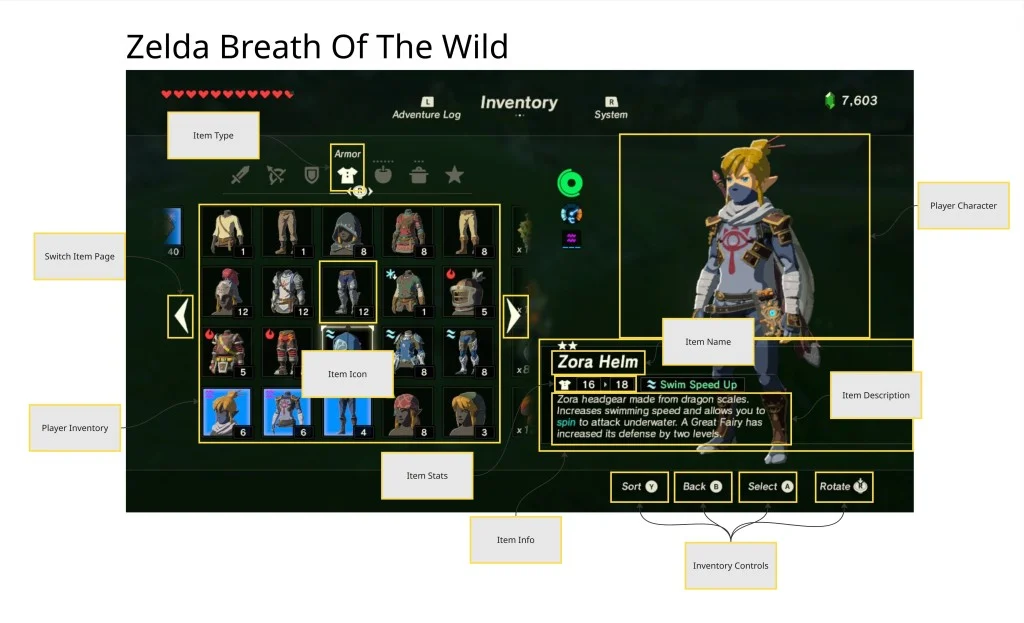
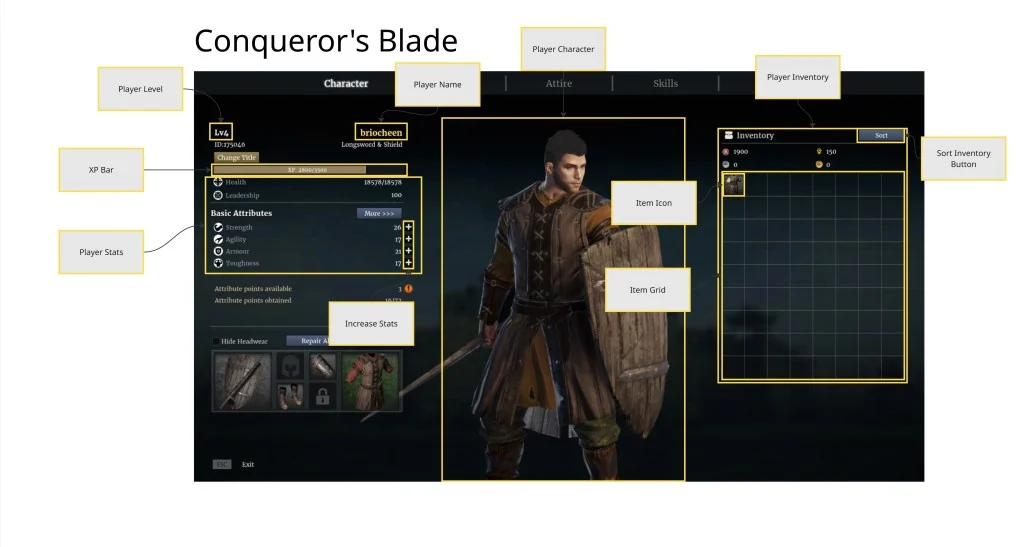
I researched inventory systems in Breath of the Wild, ARK: Survival Evolved, Conqueror’s Blade, Moonlighter, and The Witcher 3.
This showed me that inventory UI changes depending on what the player needs to manage.
In Breath of the Wild, the inventory supports equipment choice and simple organisation.
In ARK, inventory supports survival, crafting, weight, and resources.
In Moonlighter, inventory is part of the core gameplay loop because dungeon loot, selling, and item placement are central to the game.
In The Witcher 3, the inventory supports broader RPG preparation through gear, consumables, crafting items, and quest objects.
For my own inventory, this research helped me focus on item clarity. I wanted the player to quickly understand what an item is, how many they have, what it is worth, and whether it is useful.
Menu Research
I also researched menus, including:
- main menus
- pause menus
- options menus
- controls menus
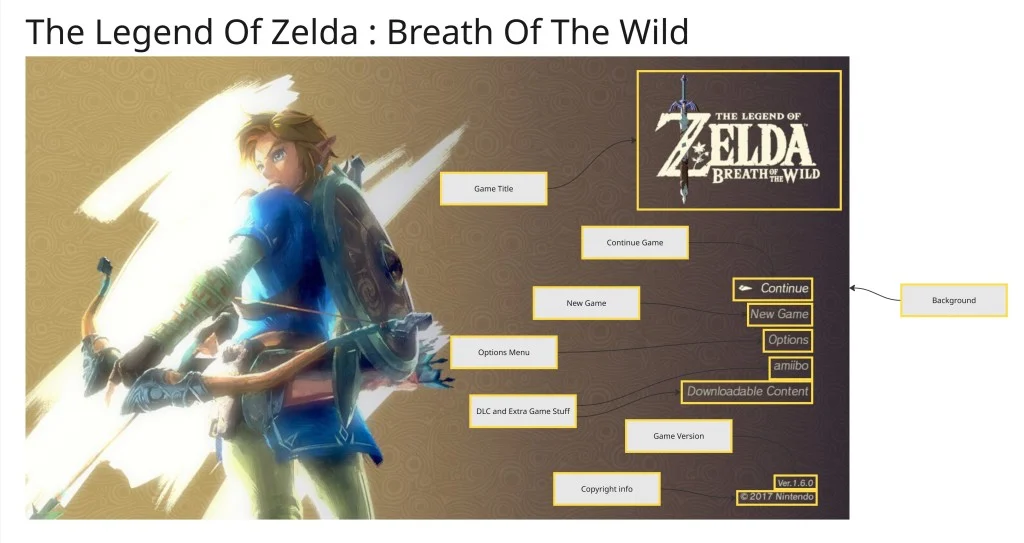
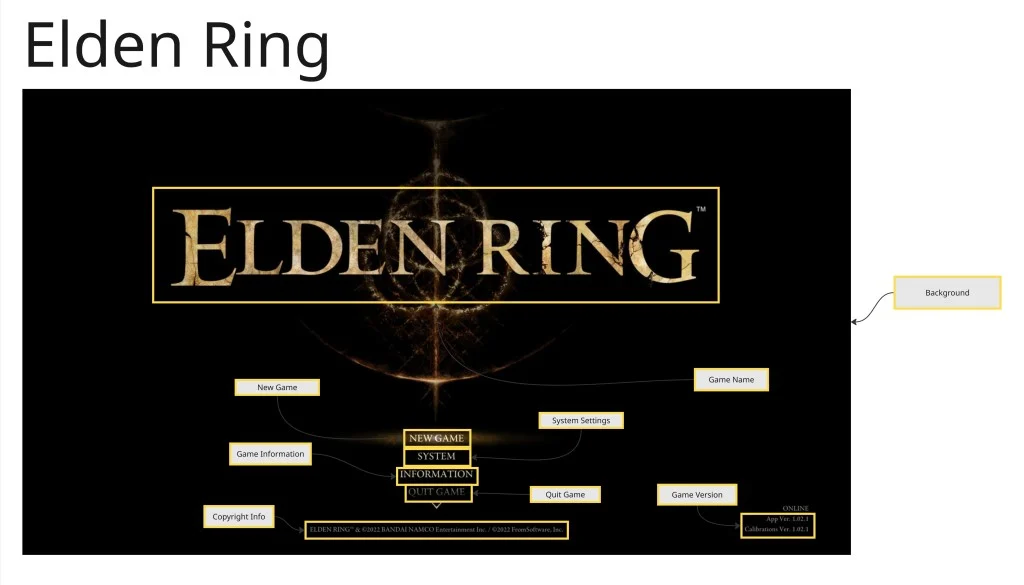
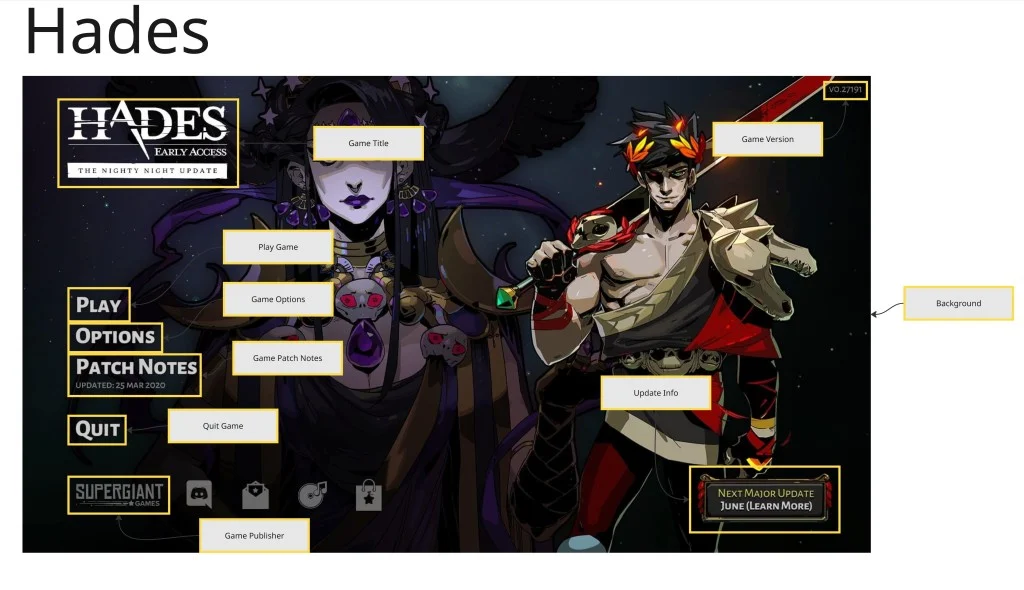
For main menus, I compared games such as Hades, Breath of the Wild, and Elden Ring. This showed me that a main menu should set the tone of the game before the player starts.
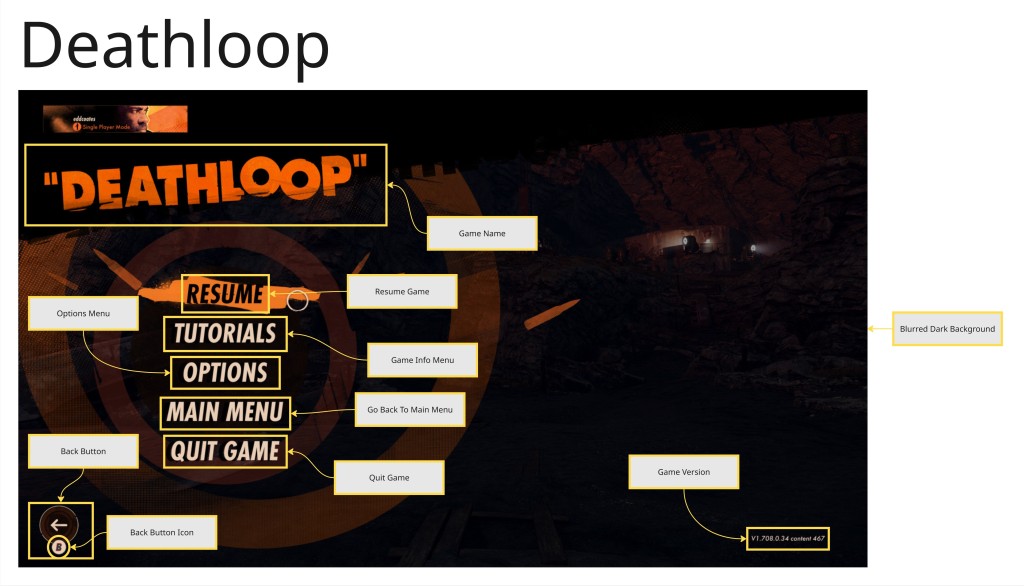
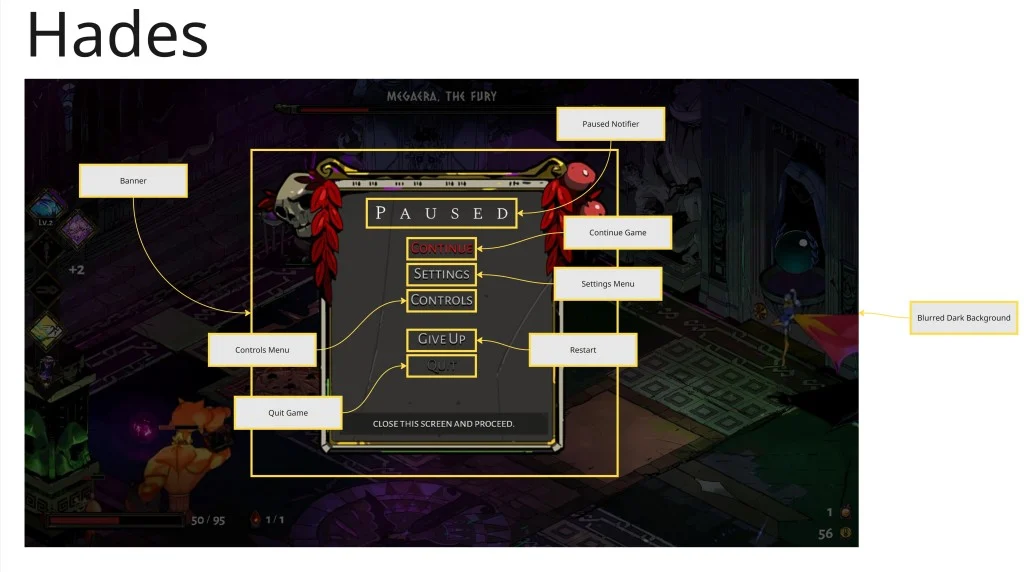
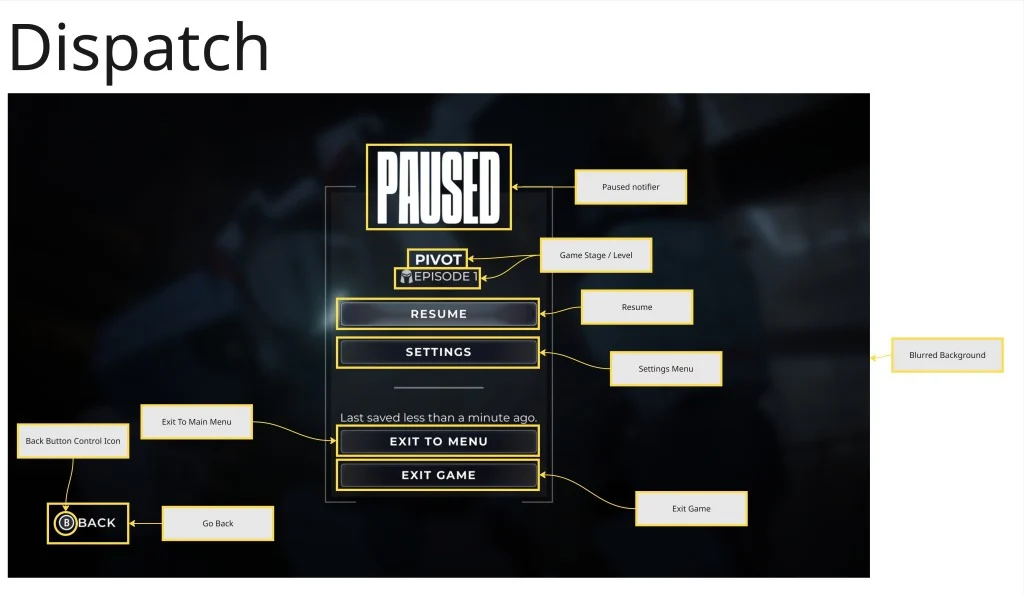
For pause menus, I compared Deathloop, Dispatch, and Hades. This helped me understand that pause menus should match the rhythm of the game.
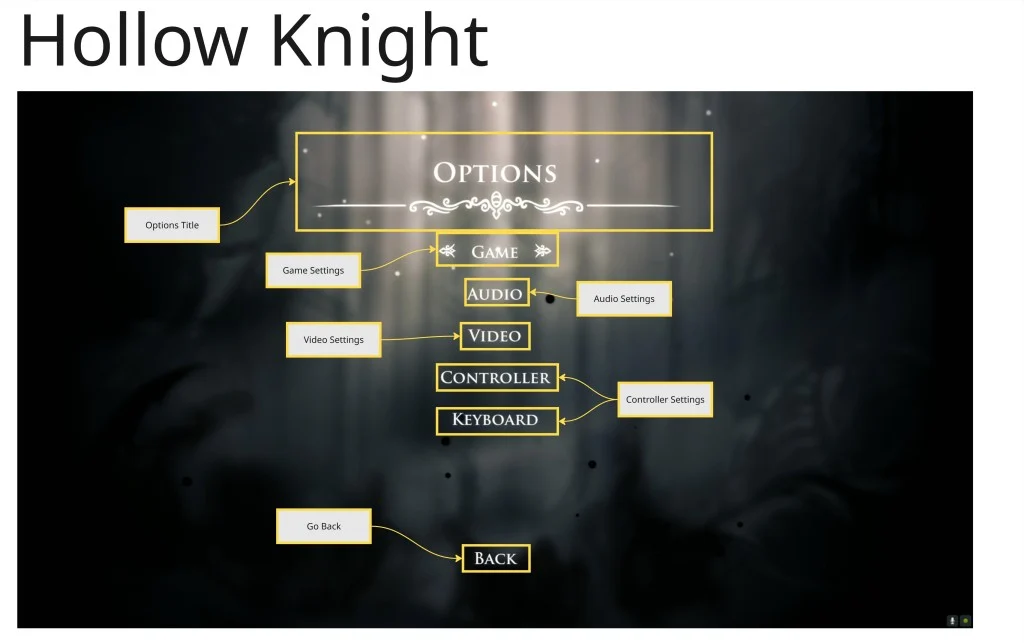
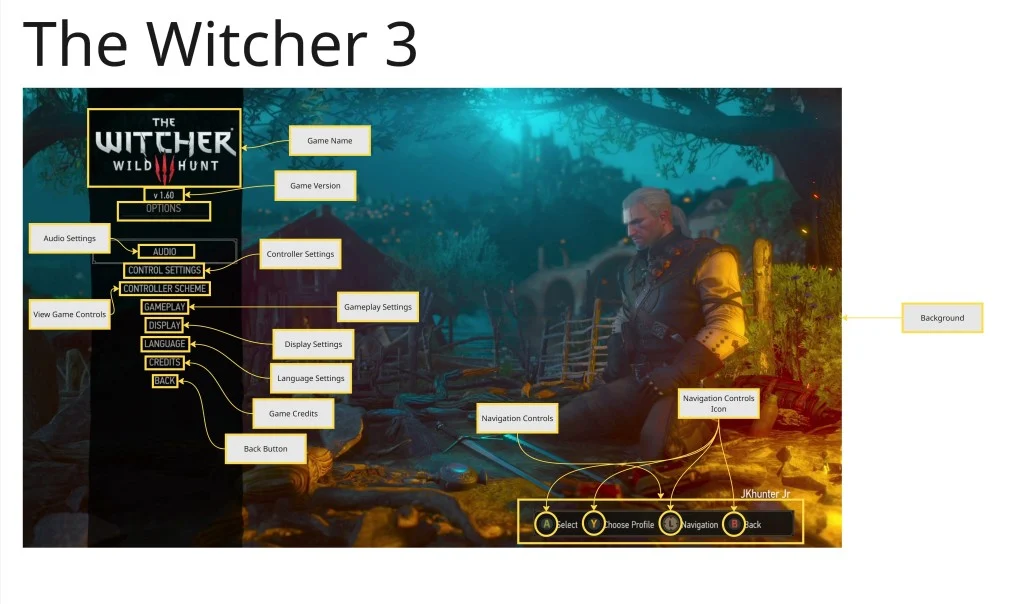
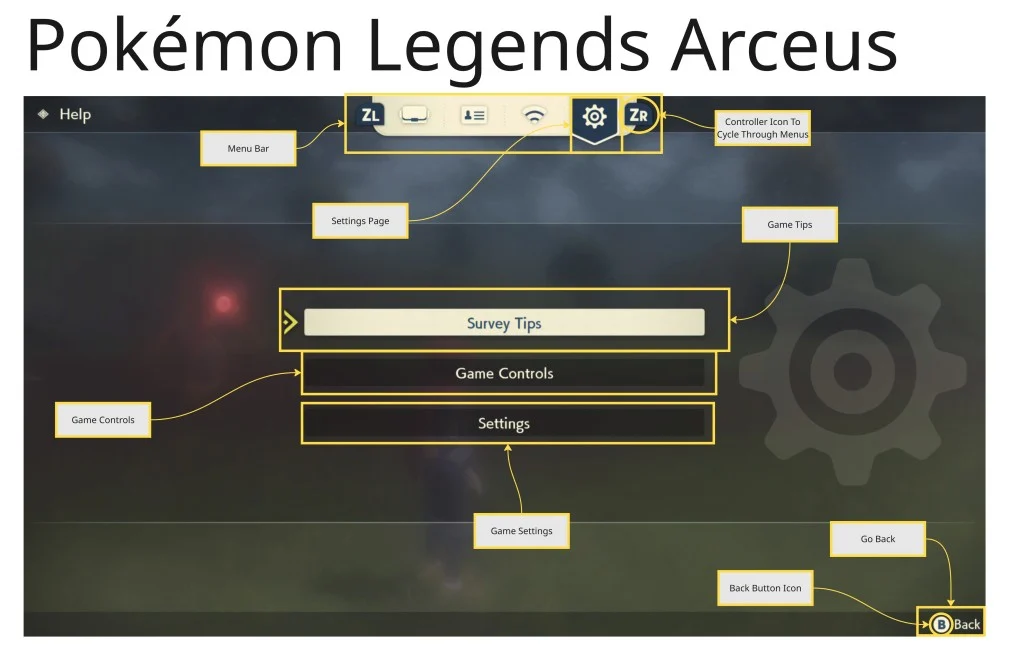
For options menus, I compared Hollow Knight, Pokémon Legends: Arceus, and The Witcher 3. This showed me that options menus are important for comfort, accessibility, and player preference.
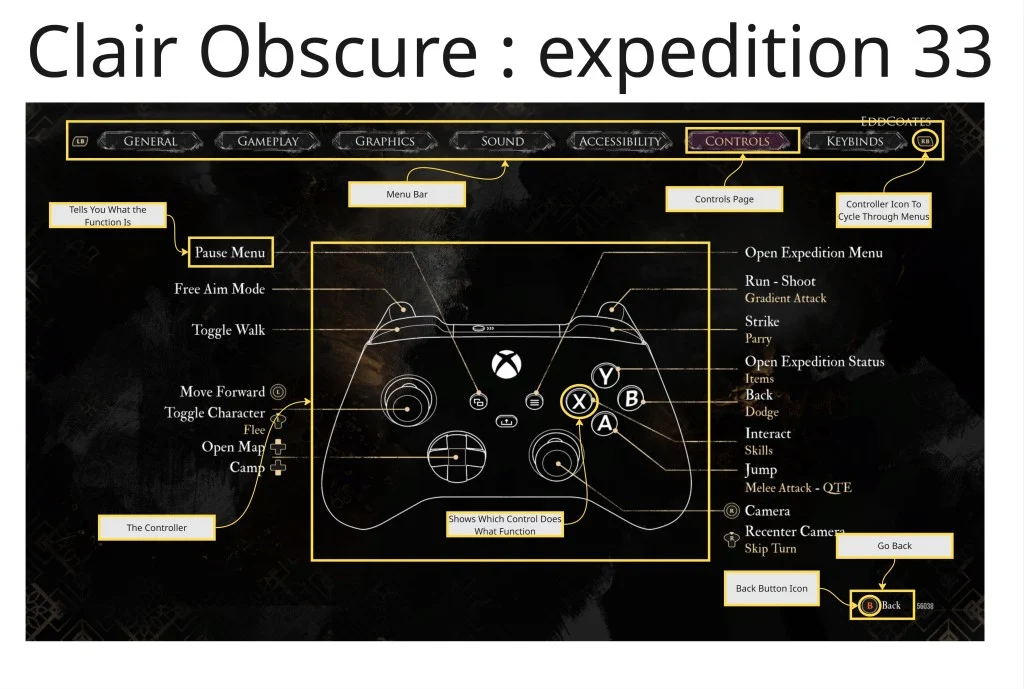
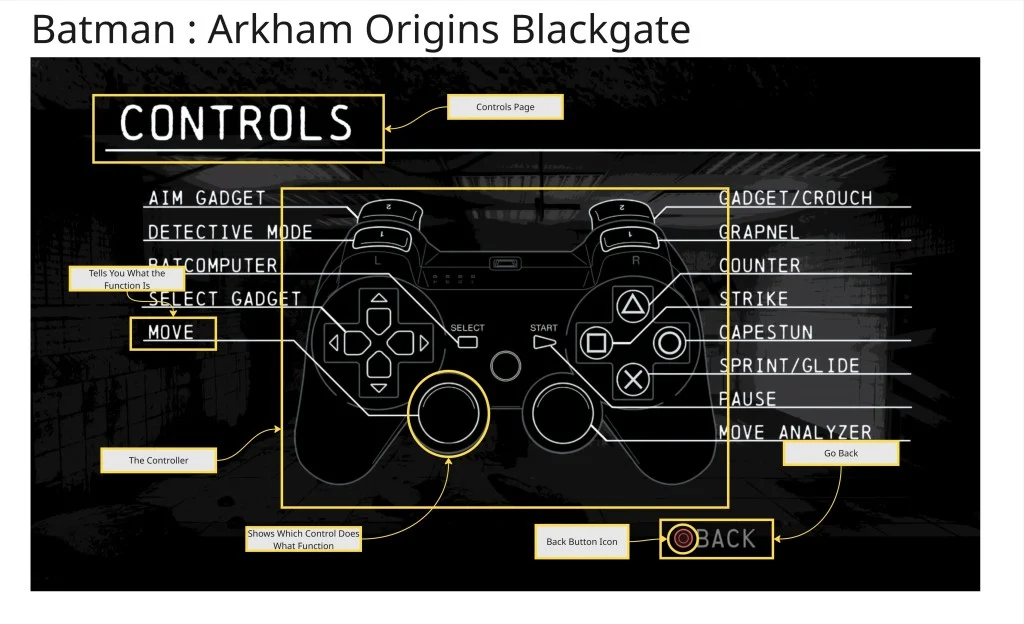
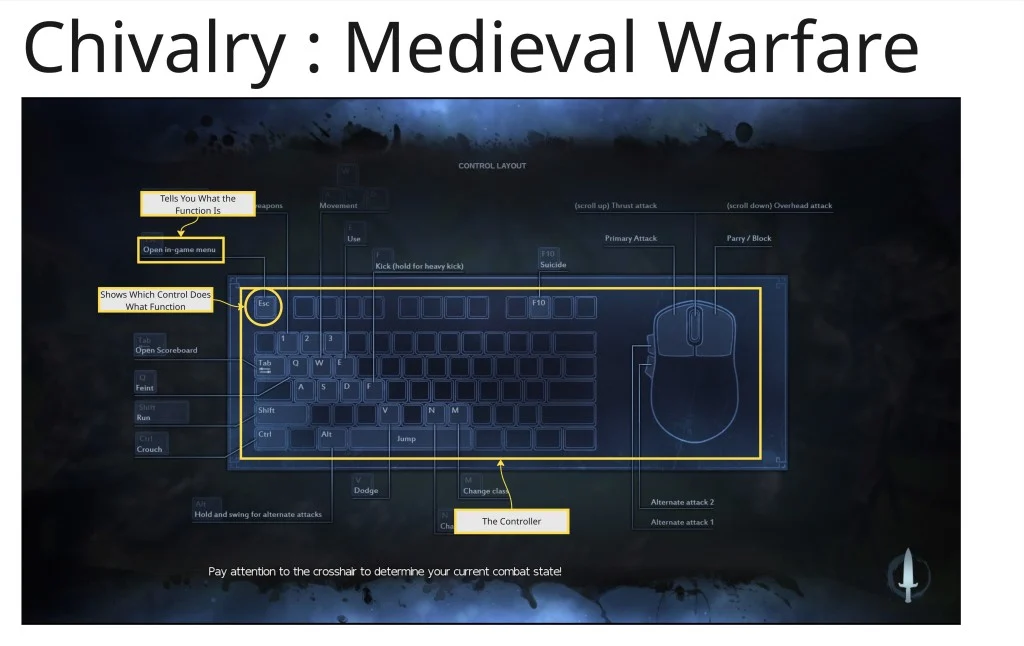
For controls menus, I compared Clair Obscure: Expedition 33, Chivalry: Medieval Warfare, and Batman: Arkham Origins Blackgate. This helped me understand that controls menus are not just background screens. They help players feel comfortable and in control.
Because of this research, I chose to create a full menu system containing:
- main menu
- pause menu
- controls menu
- options menu
Typography Research
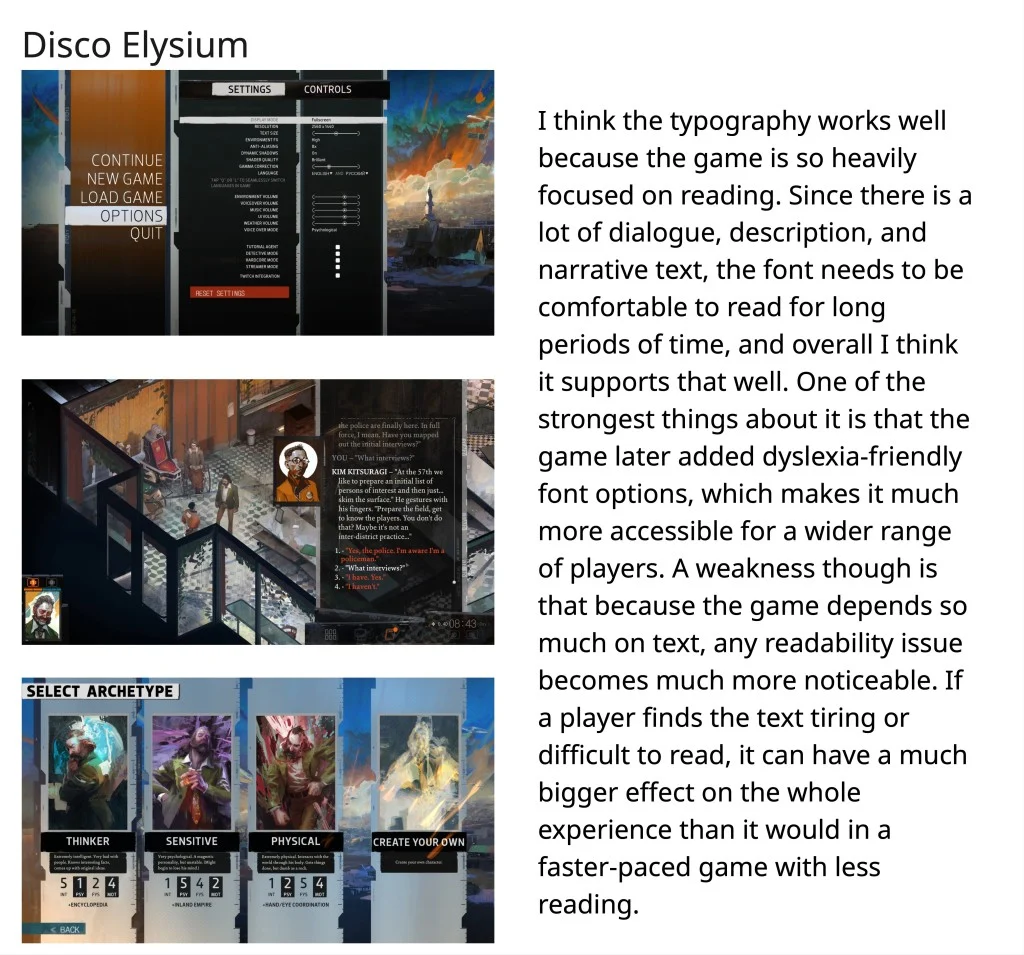
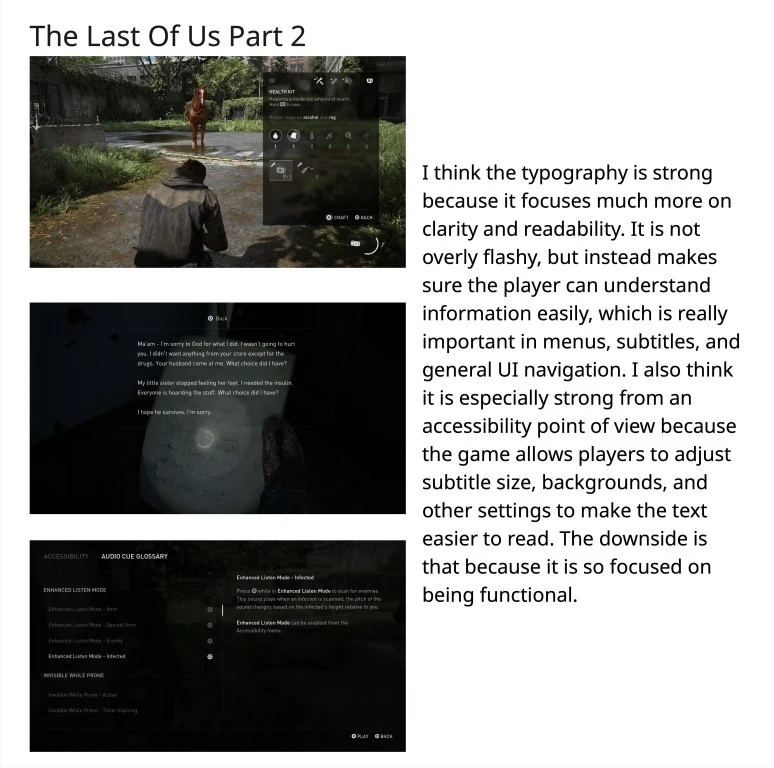
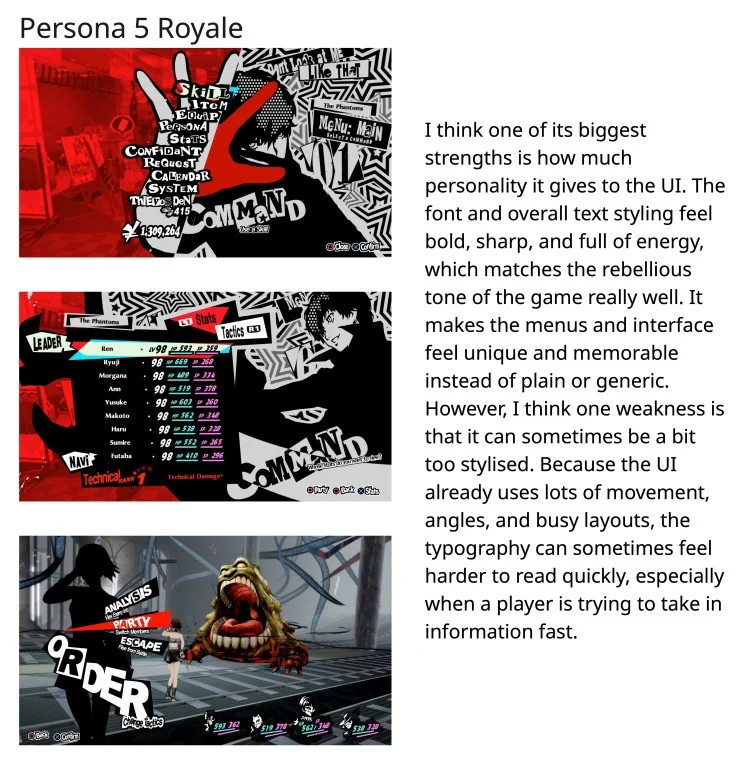
Typography was important because my UI contains a lot of text, including item descriptions, ability descriptions, menu labels, controls information, and tooltips.
I researched games such as Persona 5 Royal, The Last of Us Part II, and Disco Elysium.
Persona 5 Royal uses typography to create a strong identity, but highly stylised text can sometimes be harder to read quickly.
The Last of Us Part II focuses more on clarity and accessibility, giving players options for subtitles and text presentation.
Disco Elysium relies heavily on reading, so typography is central to the whole experience. I also noted that it added dyslexia-friendly font options, which made me think more carefully about accessibility.
This research influenced my later decision to use OpenDyslexic as the main font in my project.
Colour Palette & Accessibility Research
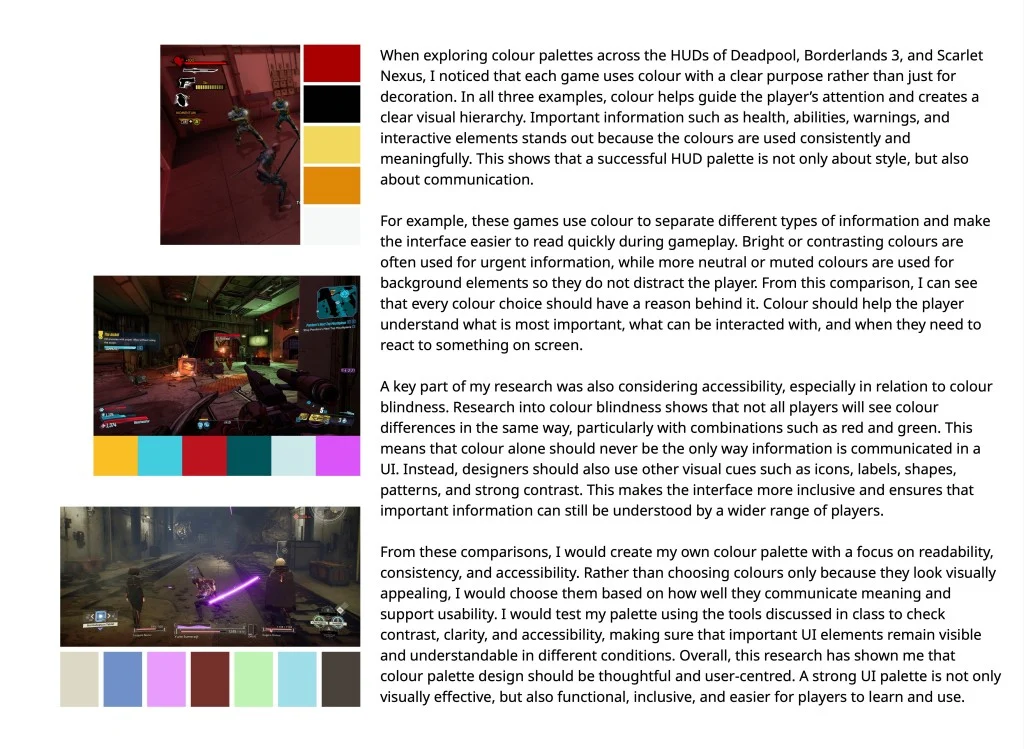
I researched colour palettes in games such as Deadpool, Borderlands 3, and Scarlet Nexus, including how they appear with different types of colour blindness.
This research showed me that colour should have a purpose. It should guide attention, separate information types, and help the player understand what is important.
I also learned that colour should not be the only way information is communicated. Important UI elements should also use:
- icons
- labels
- shapes
- patterns
- strong contrast
- consistent placement
This helped me think about accessibility more seriously. A good UI should still be understandable even if the player sees colour differently.
Information Architecture
Before creating final wireframes, I worked on information architecture for the main UI screens.
I planned the structure of:
- player HUD
- player inventory
- main menu
This helped me decide what information needed to appear on each screen and how it should be grouped.
For the player HUD, I needed to consider:
- health
- stamina
- mana
- abilities
- cooldowns
- mini map
- keybinds
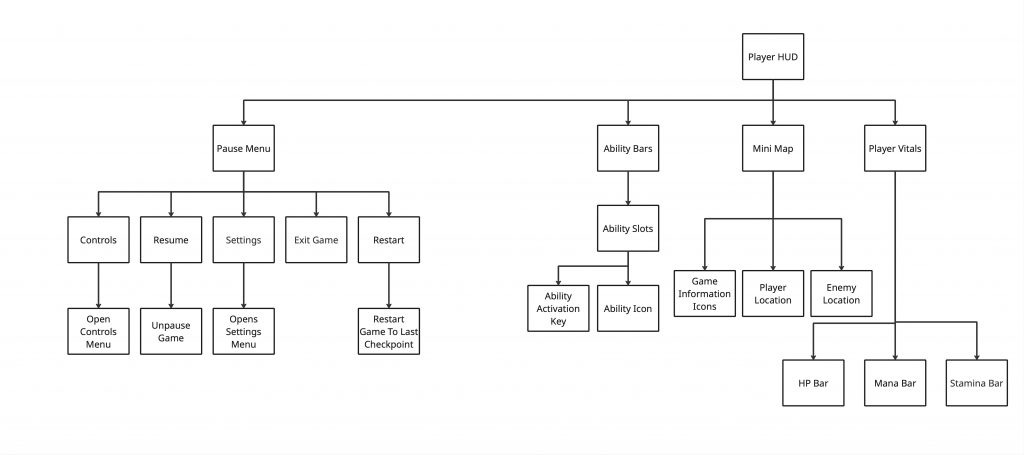
For the inventory, I needed to consider:
- item slots
- item information
- player level
- XP progress
- character stats
- player character visual
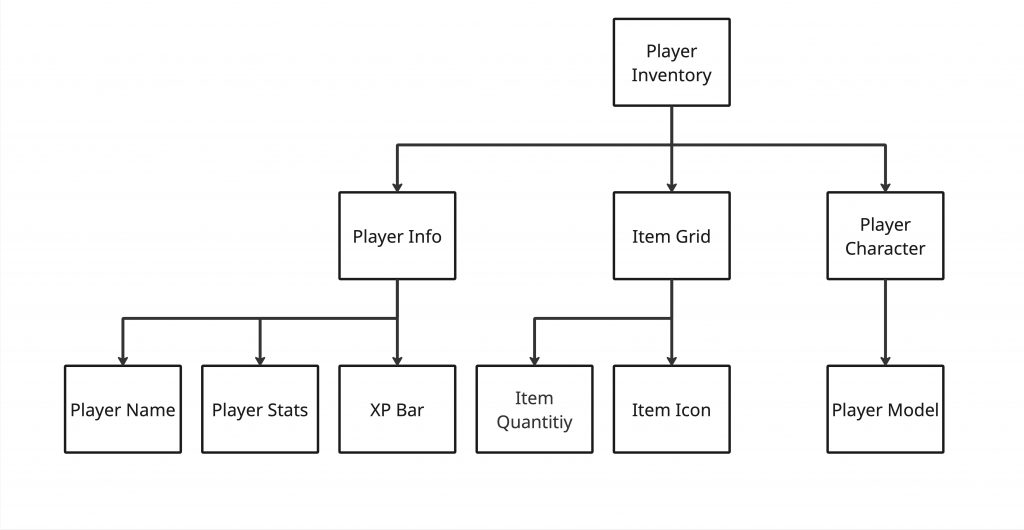
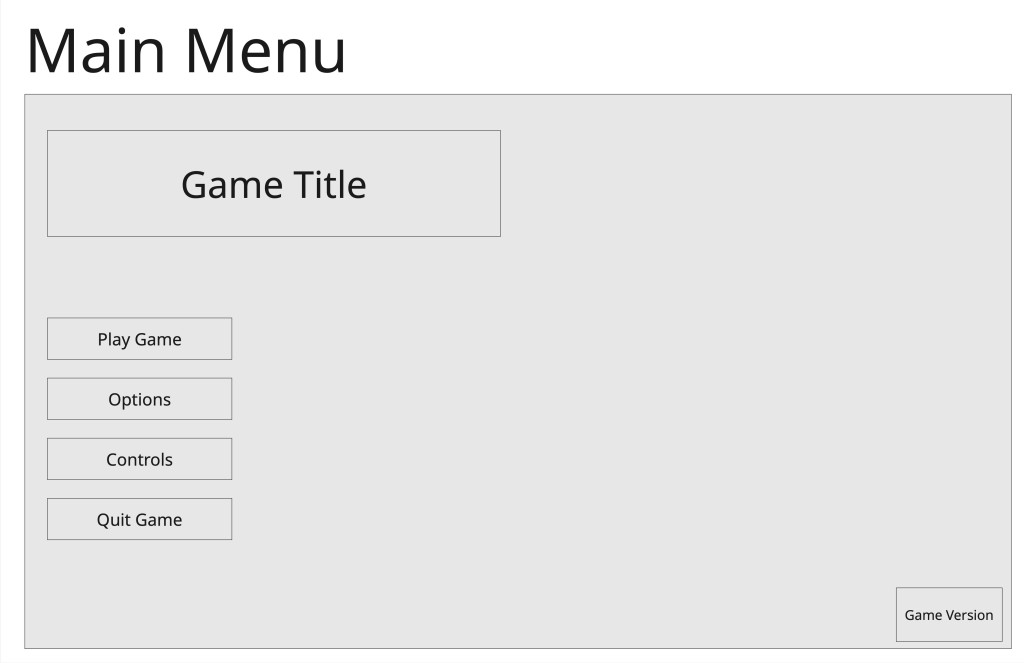
For the Main Menu, I needed to consider:
- Starting and Quitting the Game
- Options menu
- Controls Menu
- The Name of The Game
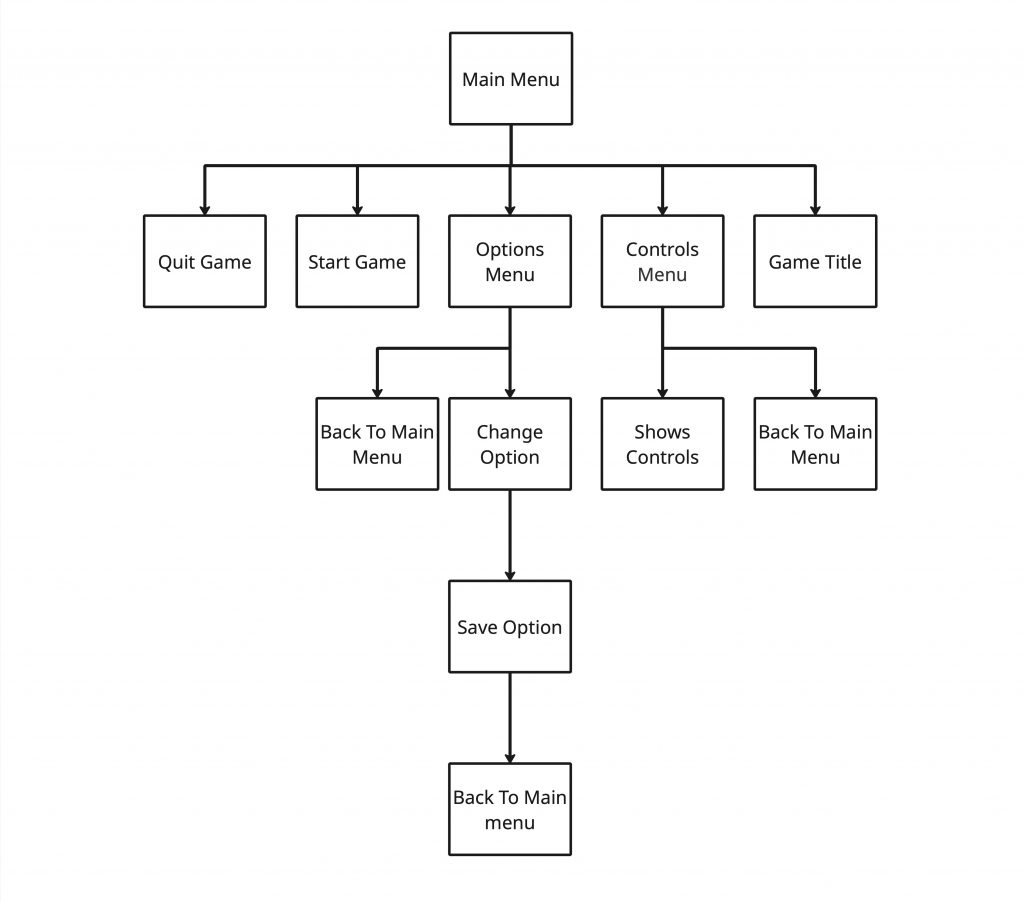
This stage helped me think more clearly about the UI before building it. Instead of placing elements randomly, I started grouping information based on what the player needed to see and when they needed to see it.
Wireframing
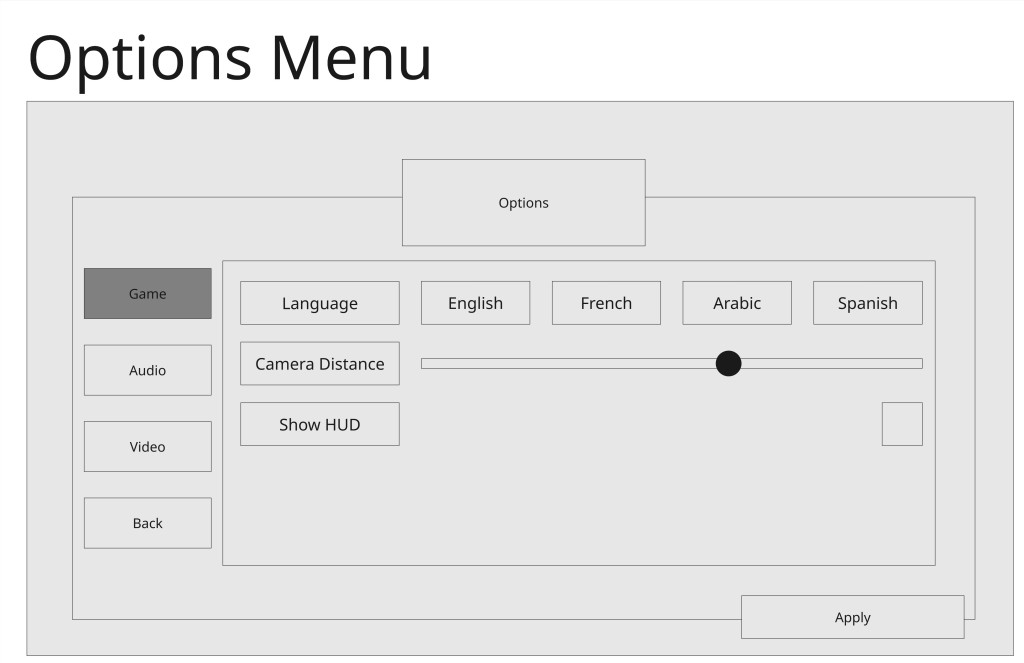
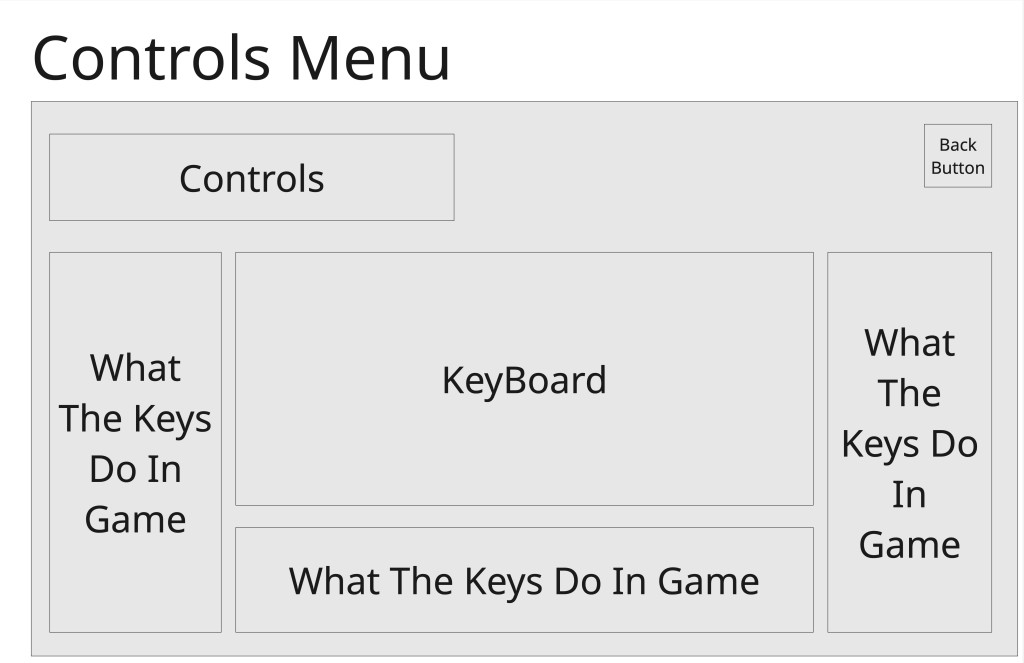
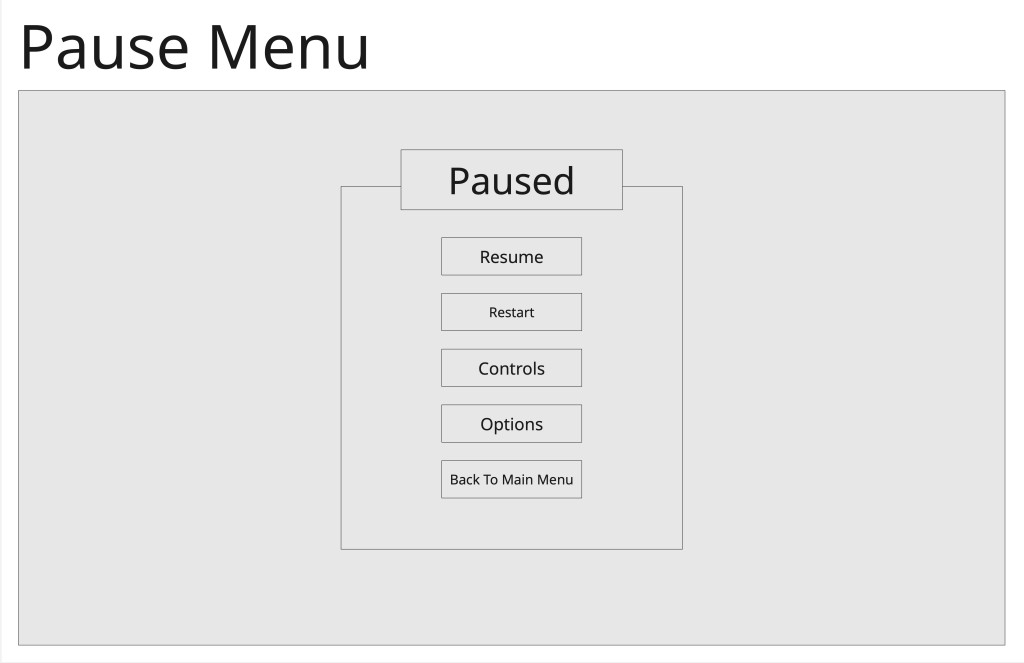
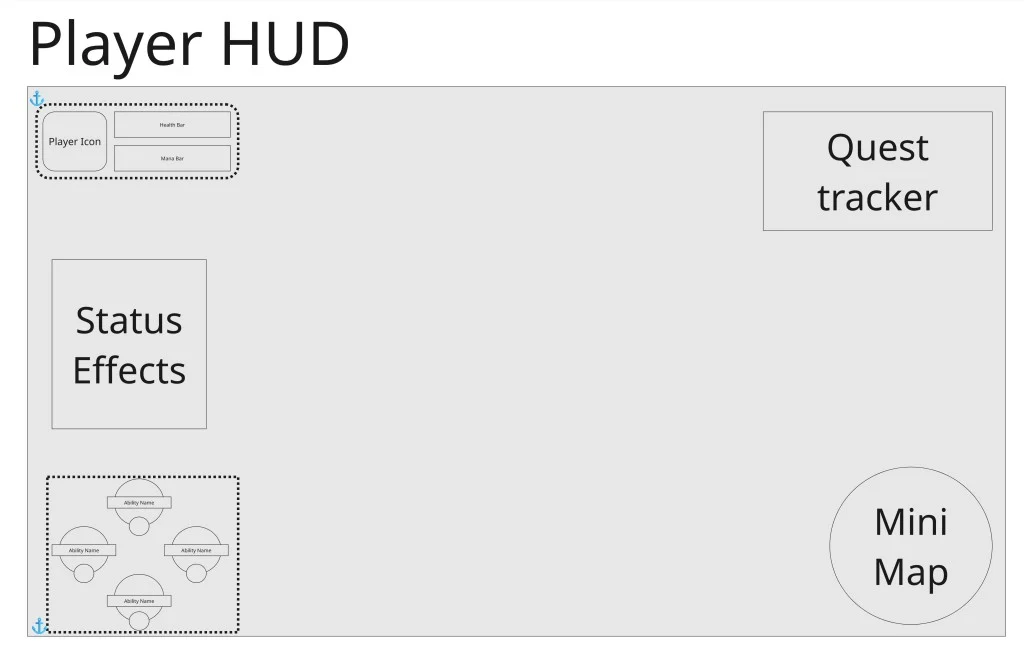
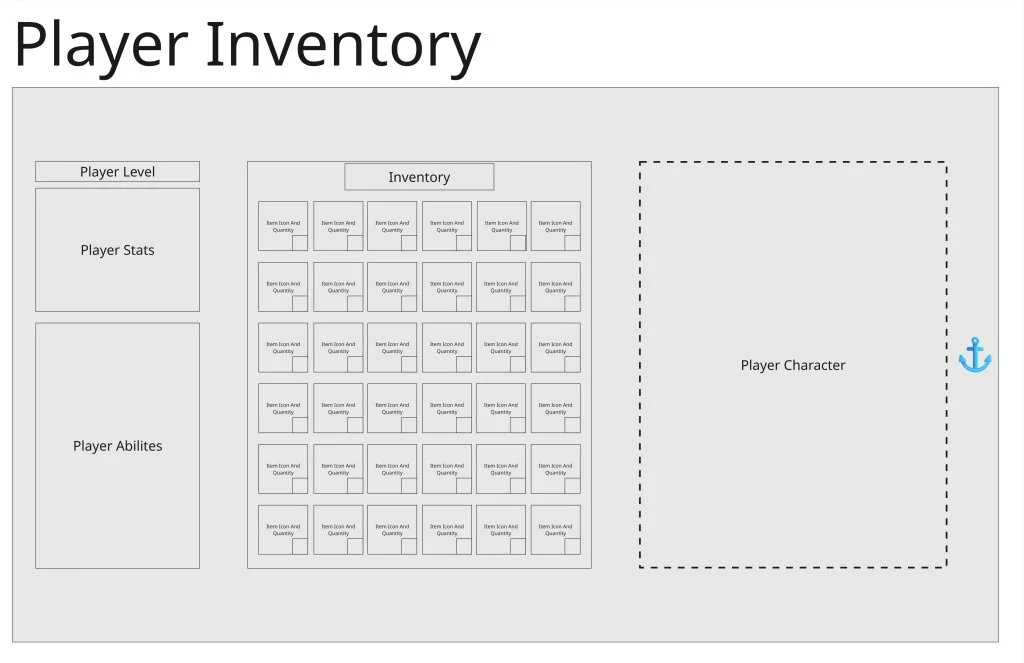
I created basic wireframes for the main interface screens, including:
- player HUD
- player inventory
- main menu
- pause menu
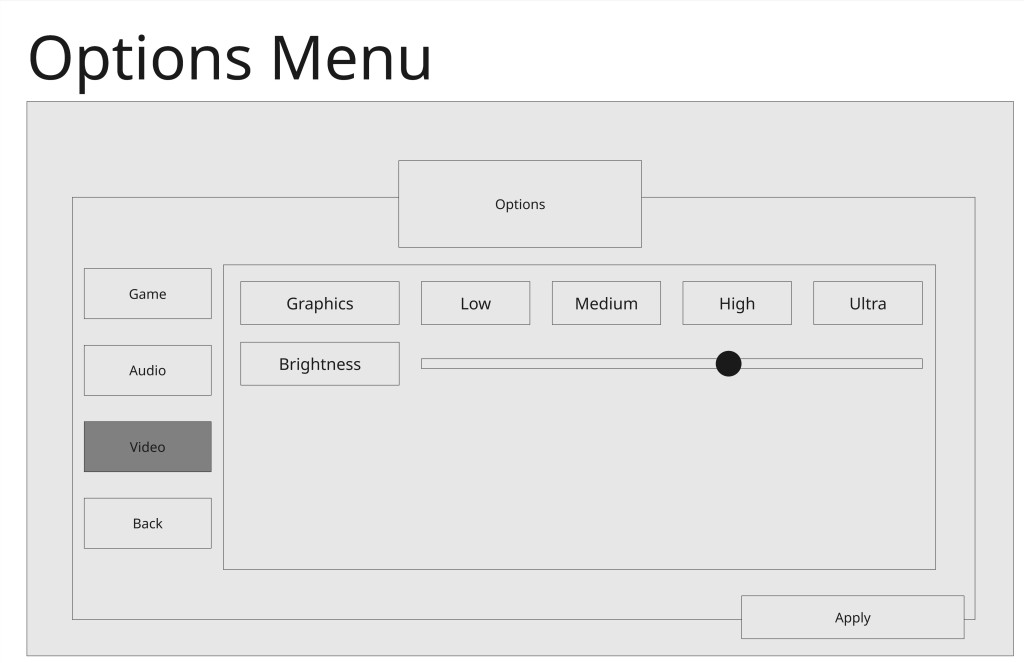
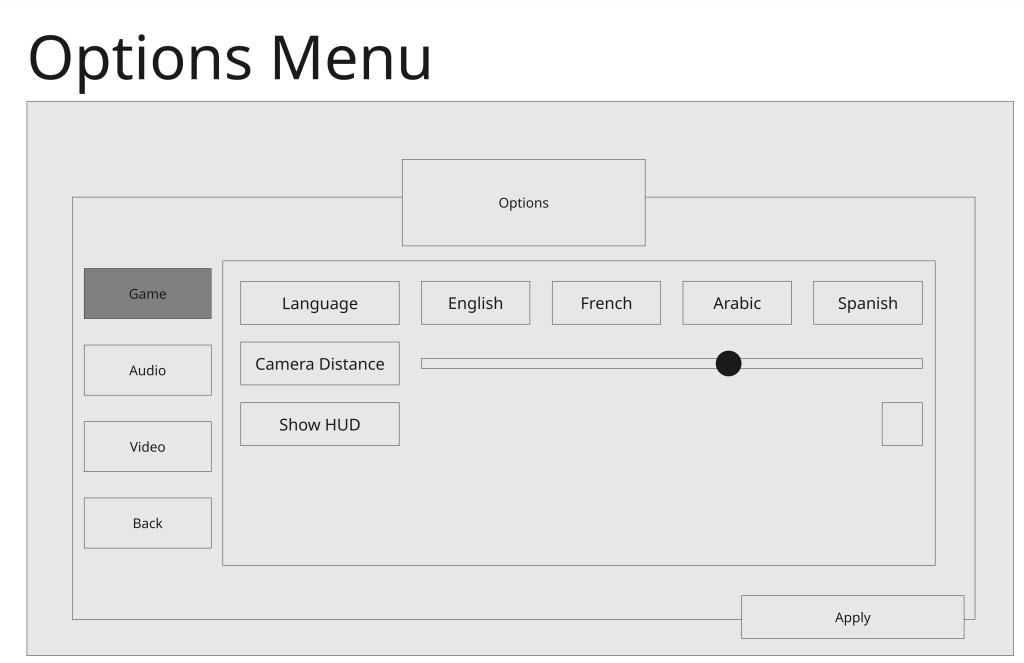
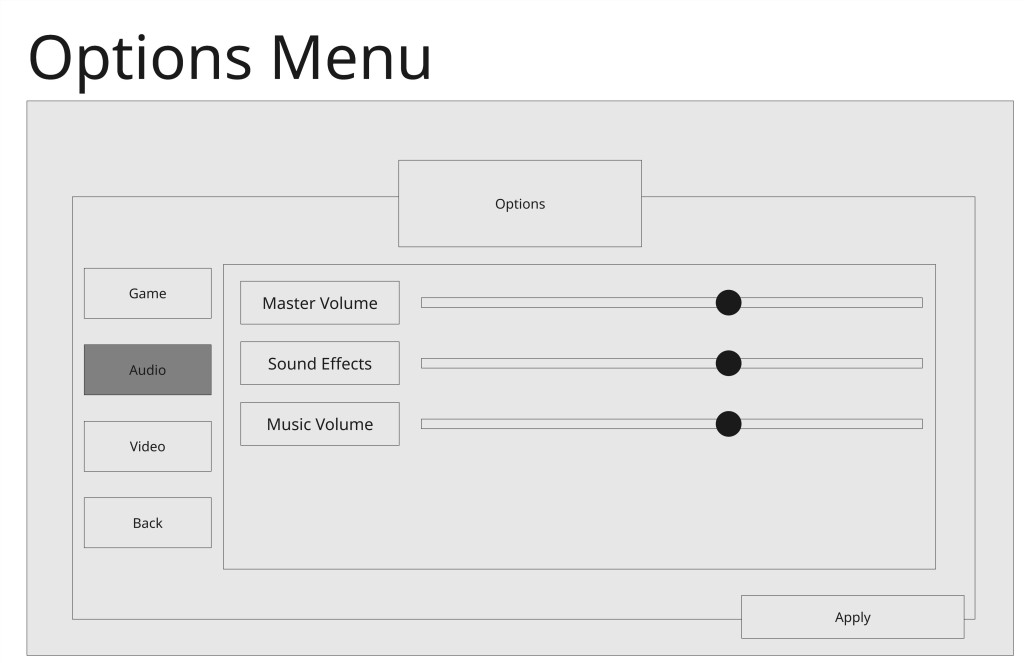
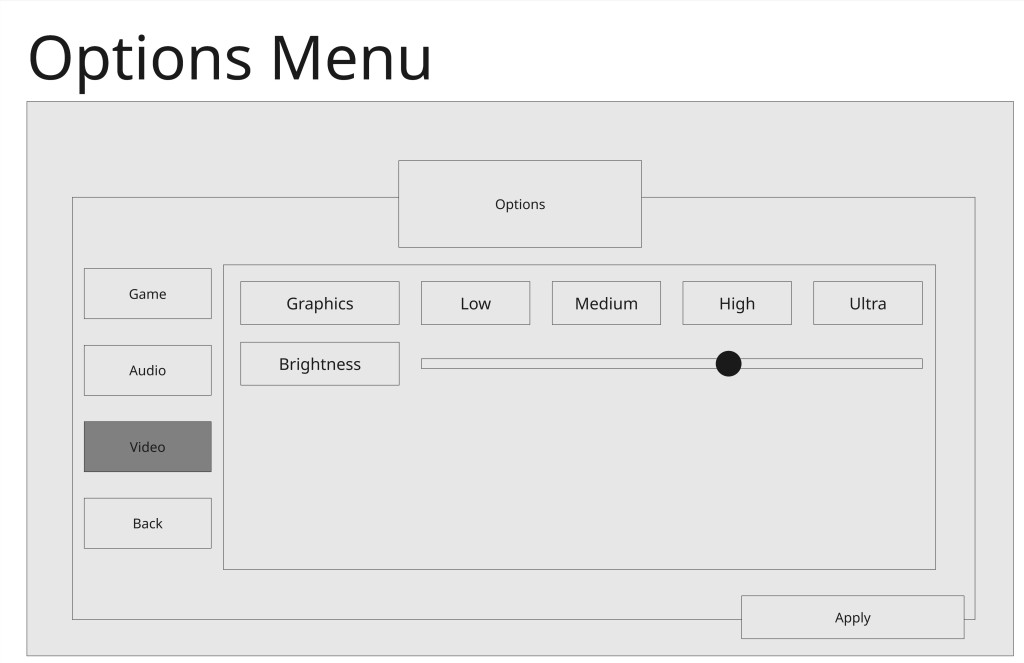
- options menu
- controls menu
The early wireframes helped me test layout ideas before committing to full implementation.
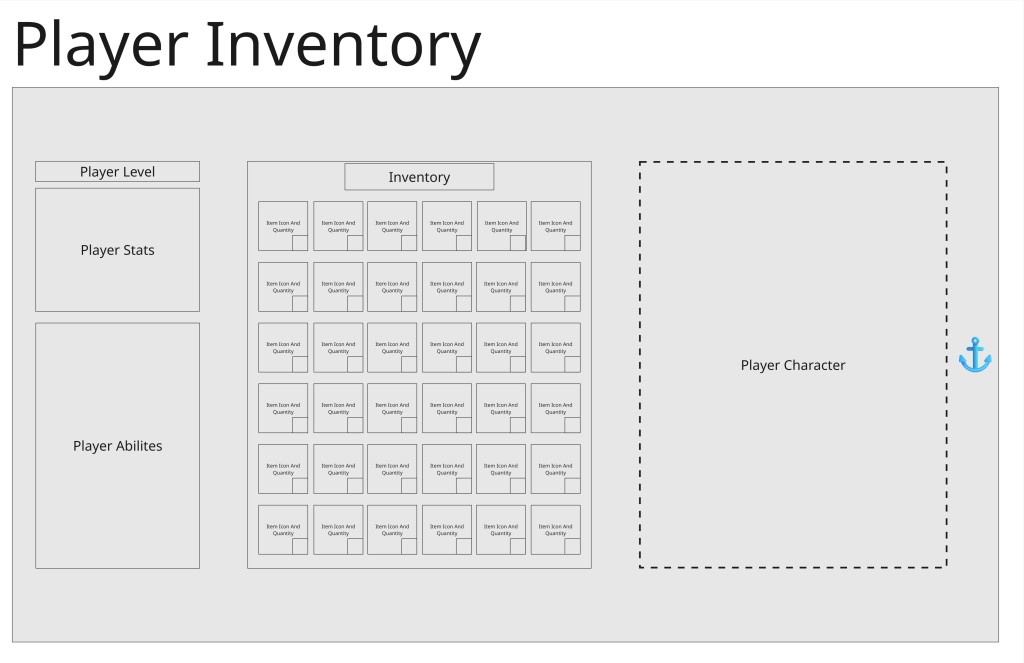
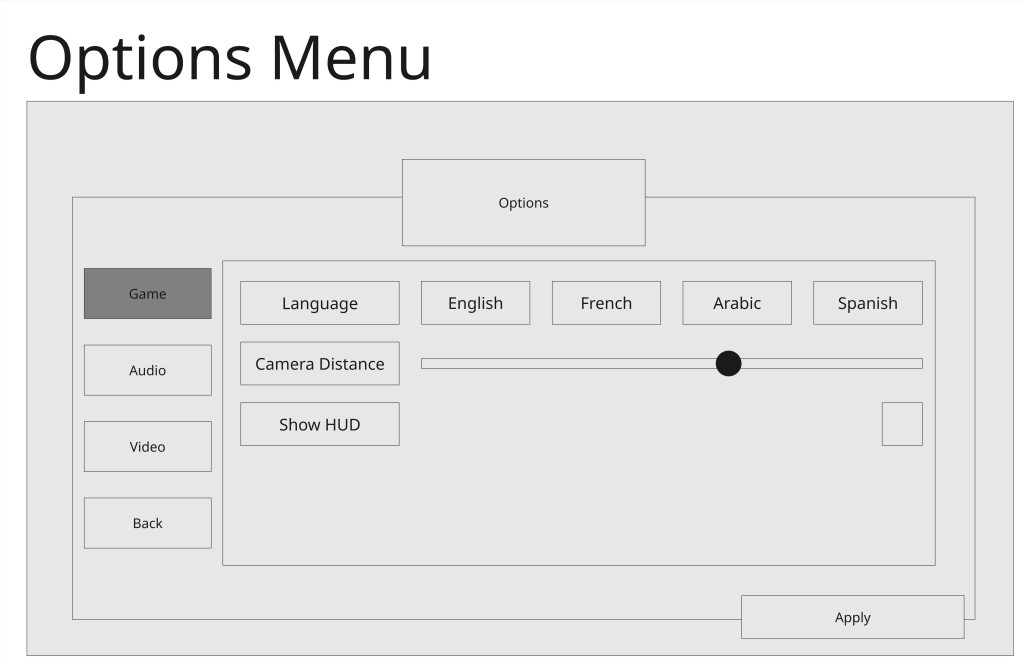
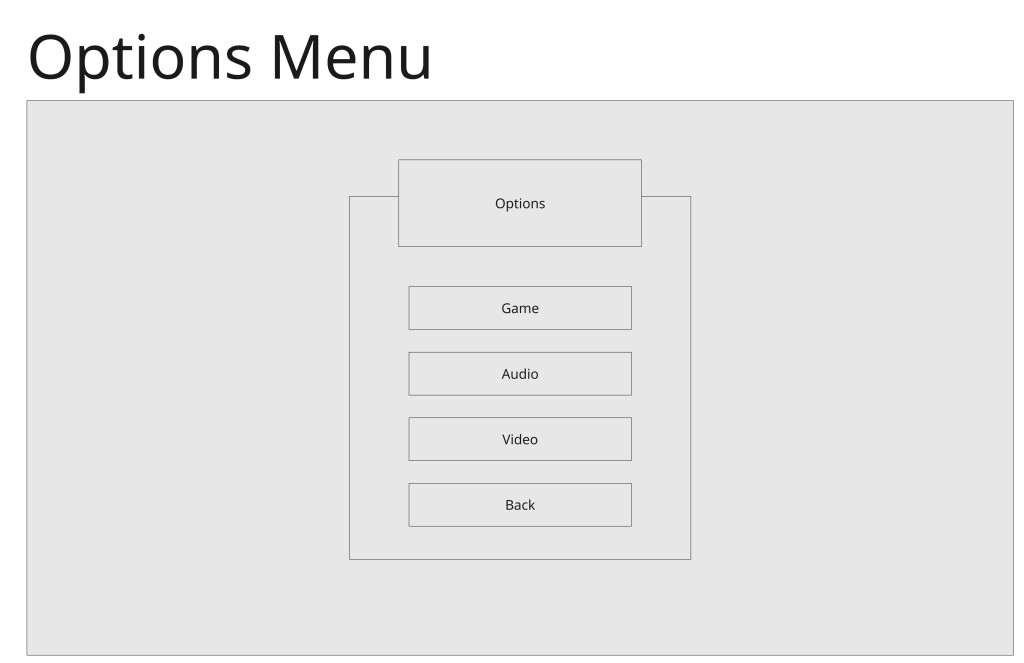
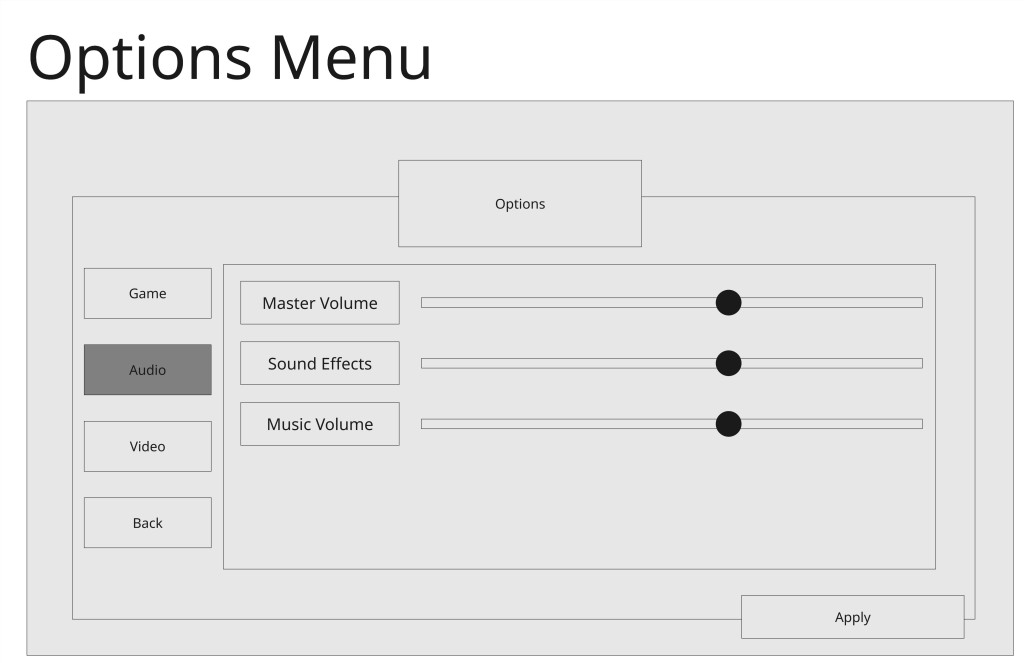
After speaking with my lecturer, I updated my wireframes to show containers, anchors, and static/non-interactable elements more clearly. This was important because UI design is not just about where things look good on one screen. It also needs to show how the layout works and how elements behave when the screen changes size.
This feedback helped me improve the clarity of my documentation and made the wireframes more useful for implementation.
Final Wireframes
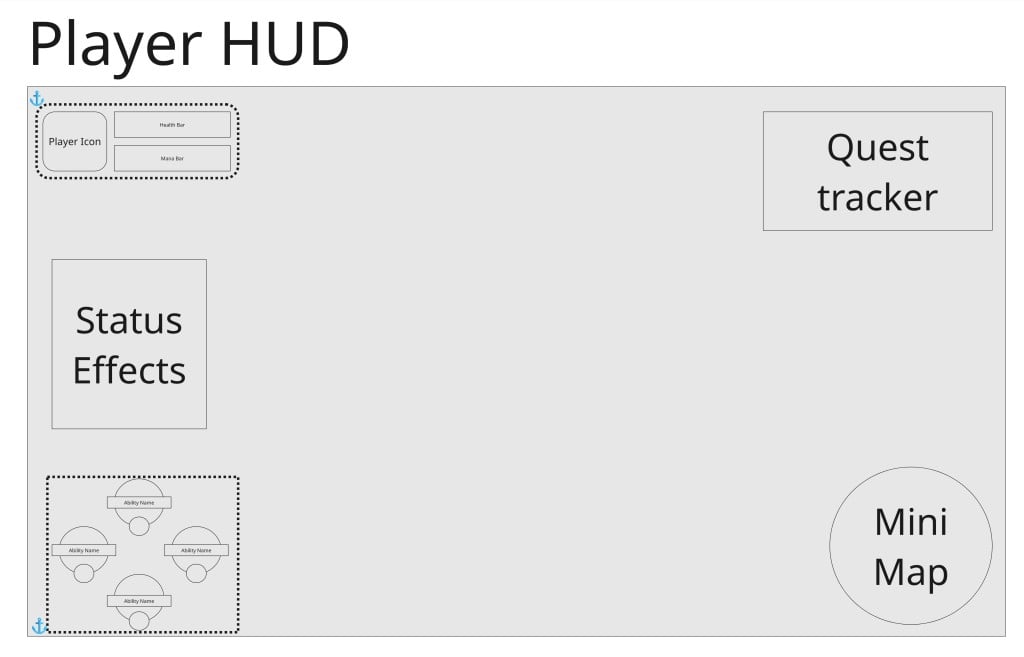
Layouts, Anchors and Responsive UI
One of the lecture tasks focused on fixing broken UI layouts in a provided project.
I used layout containers and anchors to make sure UI elements resized correctly when the game window changed size. I recorded before-and-after videos to show the difference.
This task helped me understand how important anchors are. A UI might look correct at one resolution but break completely if the player changes screen size.
After this, I started thinking more carefully about padding, alignment, containers, and overlap in my own UI designs.
Creating My First UI Elements
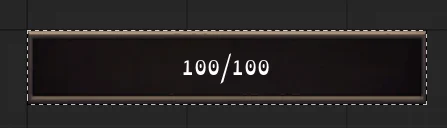
The first UI element I created was a health bar.
After following the lecture instructions, I adapted the same setup to create:
- health bar
- stamina bar
- mana bar
I then added these to the player HUD.
This was the first practical step in building the full HUD and helped me understand how visual UI elements connect to the player’s attributes.
Ability Icons, Spatial Health Bars and Pop-Up UI
During the module, I also completed tasks focused on:
- ability icons with cooldown timers
- spatial health bars
- pop-up UI with animations
These tasks were useful because they explored different ways of giving feedback to the player.
Ability icons helped me understand cooldown communication.
Spatial health bars helped me understand how UI can be attached to actors in the world.
Pop-up UI helped me explore animated feedback and temporary information.
These smaller tasks later supported the design of my own ability buttons, enemy feedback, and interactive UI elements.
Style Direction
After completing research and mood boards, I chose to develop a traditional RPG-style UI with comic-style icons and text.
I chose a traditional RPG structure because my project includes common RPG systems such as:
- health
- stamina
- mana
- abilities
- inventory
- dialogue
- quest-style interaction
- menus
Using familiar RPG UI conventions makes the game easier to understand. Players already expect certain information to appear in certain places, so the interface becomes more usable.
However, I did not want the UI to feel too plain or generic. I added comic-style visuals because they give the UI more personality and make icons, menus, borders, and text feel more expressive.
Overall, this style gave me a balance between clarity and identity.
UI Asset Planning
I created a basic UI asset list to plan what I would need for the final interface.
This included:
- HP bar frame, fill bar, and icon
- stamina bar frame, fill bar, and icon
- mana bar frame, fill bar, and icon
- ability bar frame
- ability slot icons
- cooldown overlays
- keybind labels
- mini map frame and player marker
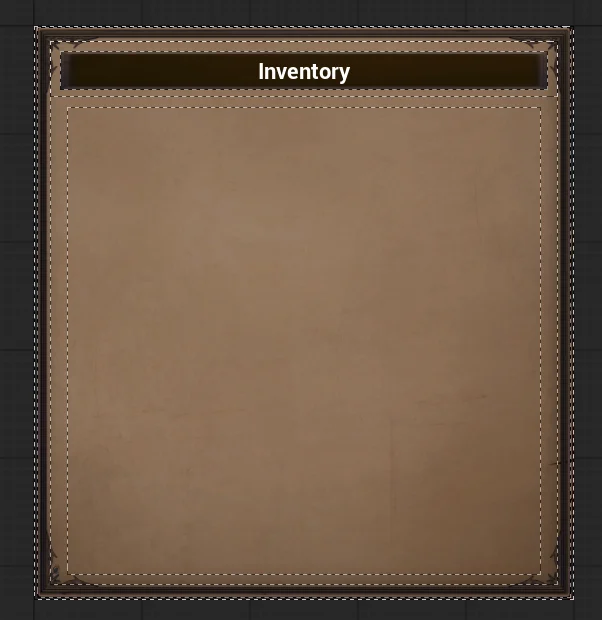
- inventory background panel
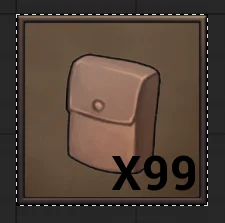
- inventory slot boxes
- item icons
- item description box
- menu background panels
- buttons
- button hover and pressed states
- main menu title
- pause menu layout
- options menu sliders and toggles
- controls menu key icons
- death screen background or overlay
- fonts
- colour palette
- comic-style borders and decorative elements
This helped me treat the UI as a full system rather than just individual screens.
Blocking Out The UI In Engine
After creating the wireframes, I blocked out the UI inside Unreal Engine.
I created blockout versions of:
- player HUD
- player inventory
- main menu
- pause menu
- options menu
- controls menu
This was useful because it let me test the UI in-engine rather than only on paper. It helped me see whether the layouts actually worked, whether anything felt too crowded, and what would need to become functional later.
This stage helped bridge the gap between design and implementation.
Wireframe Iteration
After showing my wireframes to lecturers and classmates, I iterated on the designs.
One of the biggest changes was to the player HUD. The original version was too cluttered and had too much information on screen at once. To improve this, I removed the quest tracker and status effects widgets from the HUD.
This made the HUD cleaner and easier to read during gameplay.
I also tested different placements for the ability buttons and mini map. I experimented with having the ability buttons on either the bottom left or bottom right, with the mini map placed in the opposite corner.
After feedback from classmates, I chose to place:
- abilities on the bottom left
- mini map on the bottom right
This layout felt more natural and balanced.
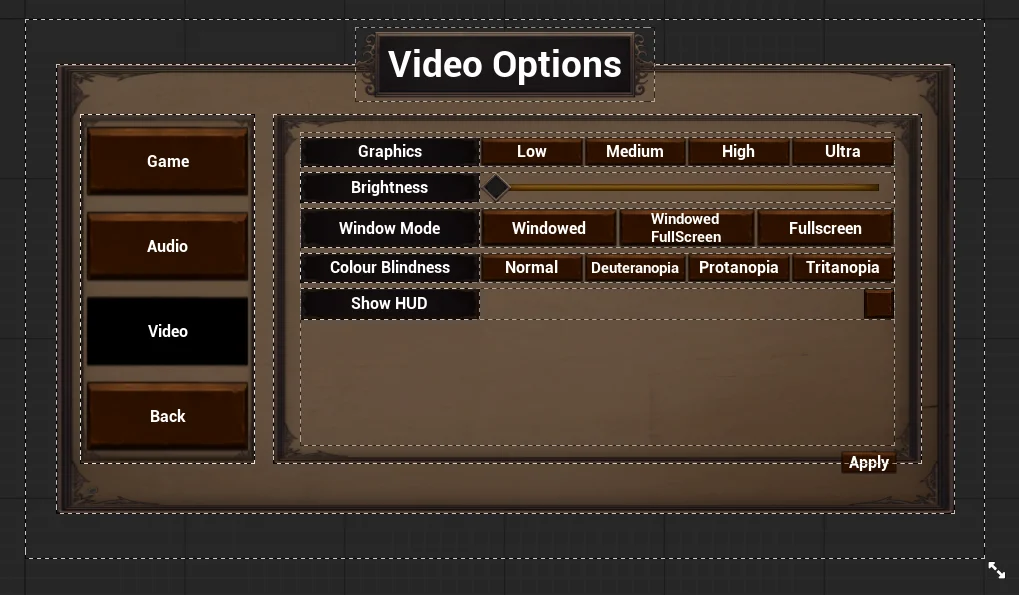
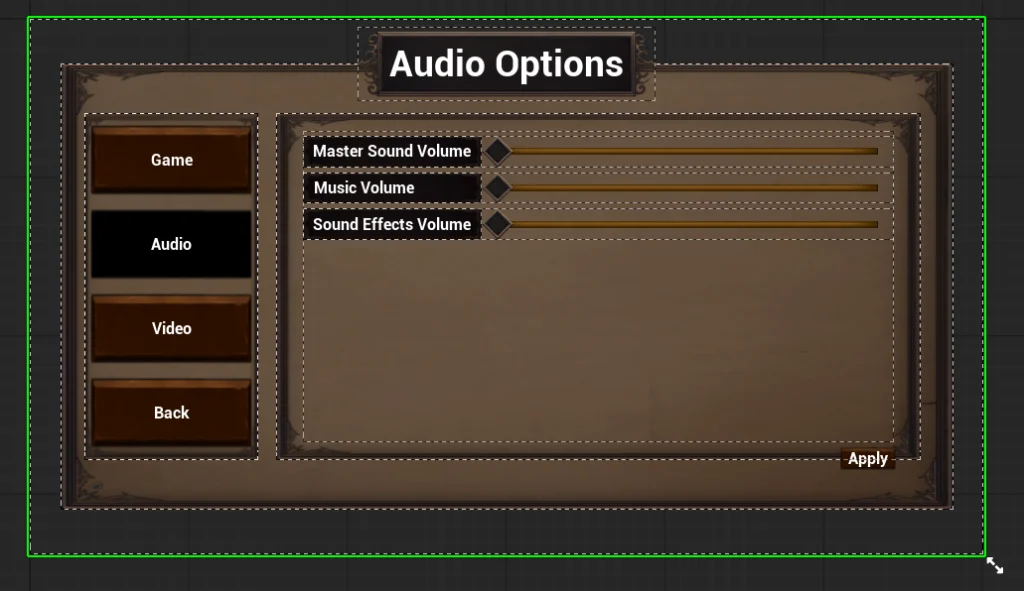
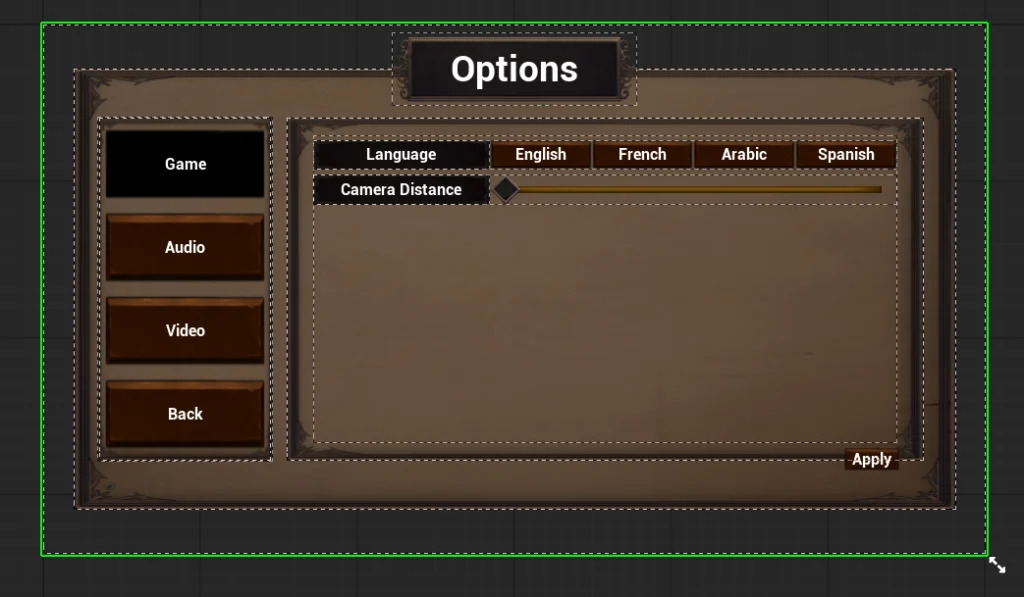
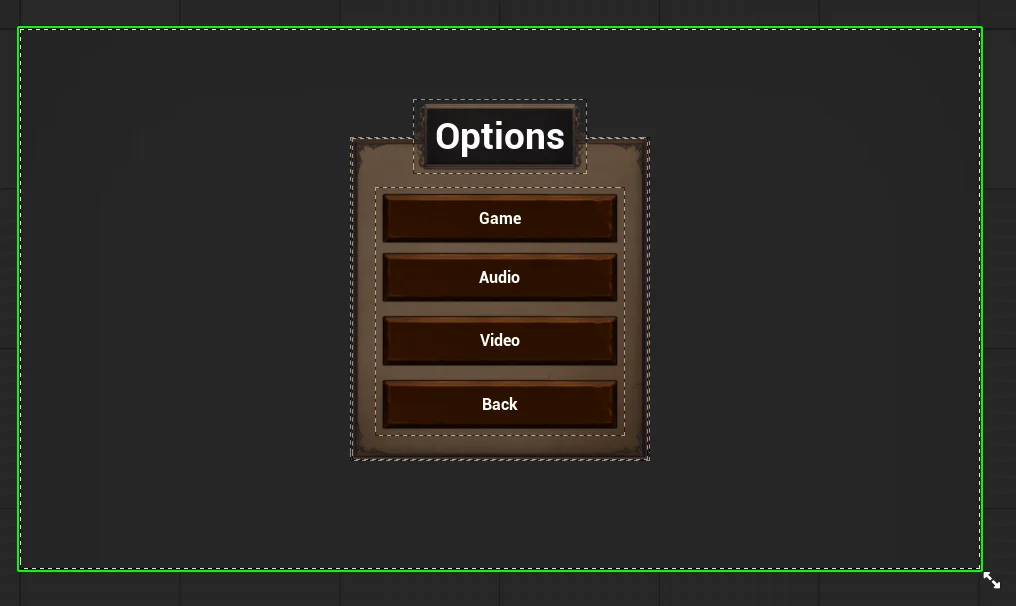
I also completed missing options menu screens so the menu system felt more complete.
This iteration process helped me understand how useful feedback is in UI design. Even if a layout makes sense to me, it still needs to feel clear and usable to other players.
Mini Map Implementation
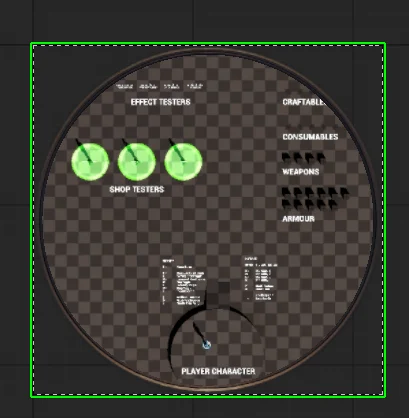
I created the mini map by following the lecture tutorial, using a 2D scene capture to create a render texture.
I then exported the texture into Photoshop and edited it before reimporting it into the project. Later, I updated the mini map texture to use a simple blank checked background.
I chose this because I wanted the mini map to stay clear and not become too visually busy. By keeping the background simple, the icons could become the main focus.
I expanded the mini map by adding icons for:
- player location
- enemies
- shops
- quest-giver NPCs
I separated these icons into different widgets and used different colours so the player could identify each marker type more easily.
I also set the system up so that temporary icons could be replaced later with final icons without rebuilding the whole mini map system.
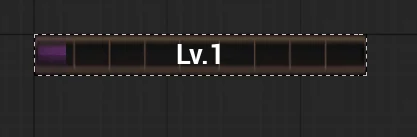
Circular XP Bar
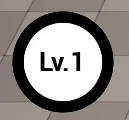
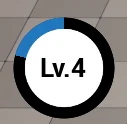
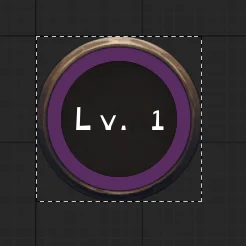
I implemented a circular XP bar using the circular progress material already included in the framework.
The circular bar tracks the player’s current XP compared to the amount required to level up. I also added a number in the centre of the circle to show the player’s current level.
When the player gains enough XP, the level number updates.
This made progression more visual and gave the player a clear way to understand how close they are to levelling up.
Ability Buttons and Cooldowns
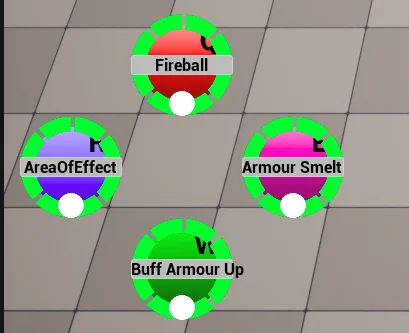
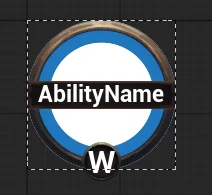
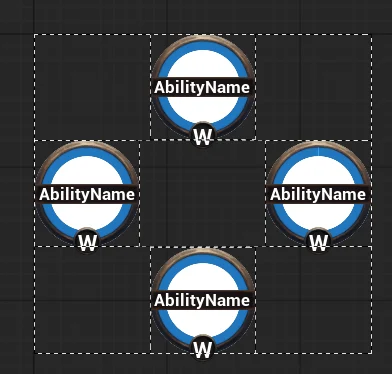
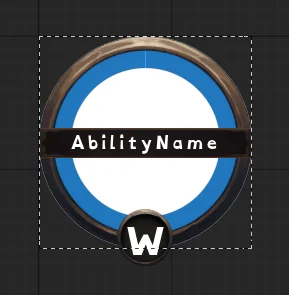
I created ability buttons that display important information clearly during gameplay.
Each ability button includes:
- ability icon
- ability name
- key input icon
- cooldown progress
- ability data references
I reused the circular progress material as a cooldown timer, so the player can quickly see when an ability will be ready again.
The widget pulls ability references from the player and uses them to initialise each ability button with the correct information. This means the buttons update based on the abilities currently assigned to the player.
This was important because it made the UI data-driven instead of manually setting up each button separately.
Item Hover Information
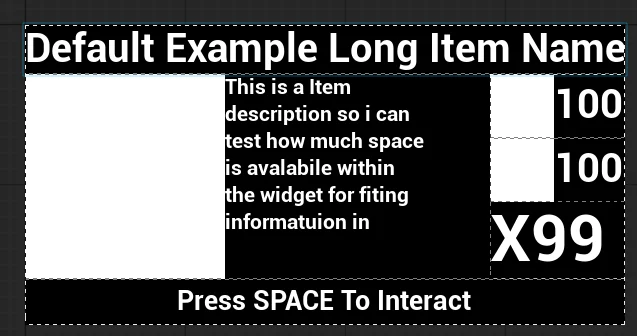
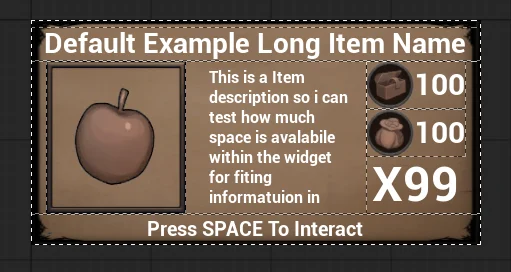
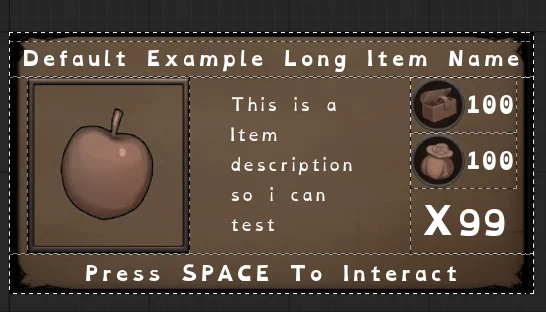
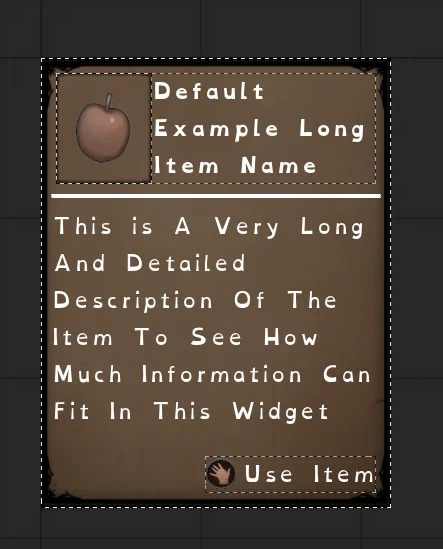
I created a hover-over item information widget for the inventory.
When the player hovers over an item, the widget displays:
- item name
- item image
- item description
- weight
- value
- quantity
- interaction text
This gives the player useful information without needing to open another screen.
The widget is linked to the item slot data struct, meaning it can automatically pull the correct item information when initialised.
This helped make the inventory feel more responsive, useful, and polished.
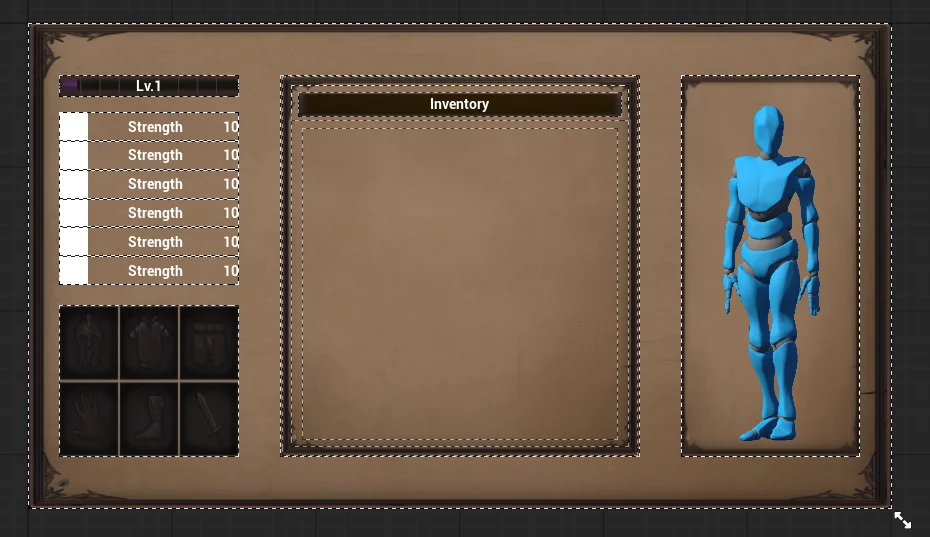
Player Inventory UI
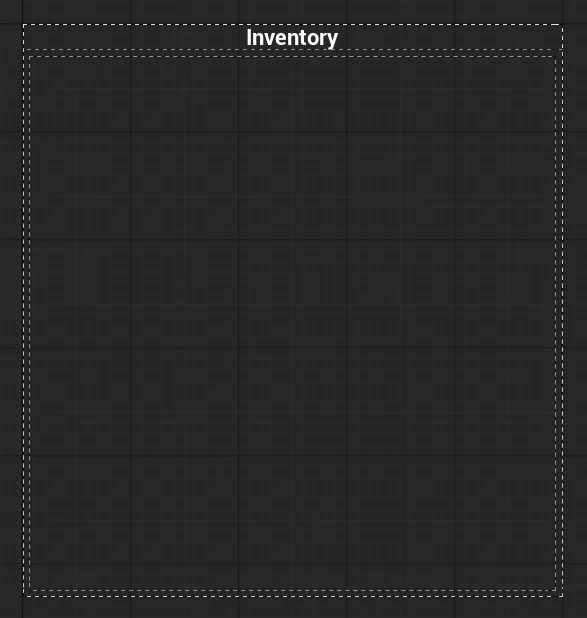
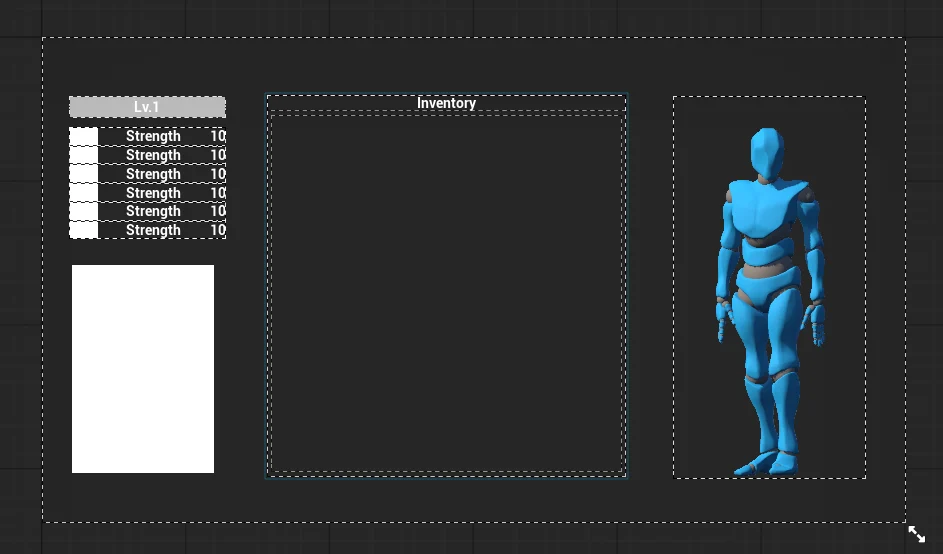
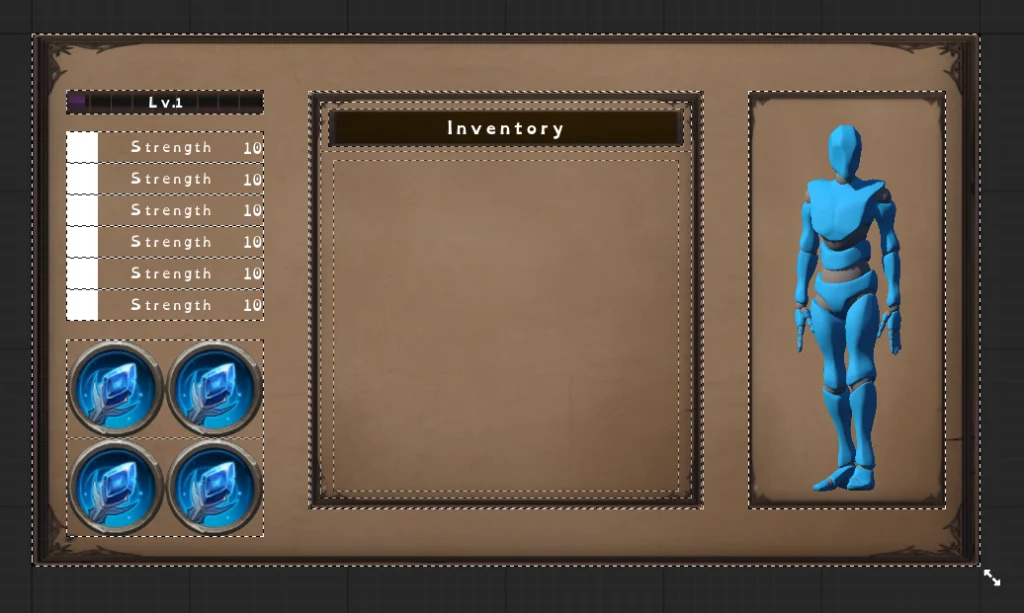
I developed the player inventory UI by building on the lecture tutorial and expanding the layout with my own features.
The inventory includes:
- item slots
- item hover information
- circular XP and level display
- player characteristics
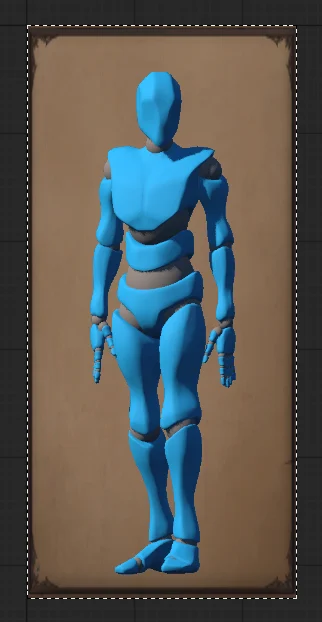
- player character visual
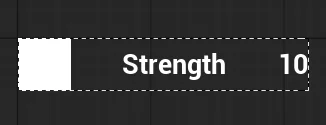
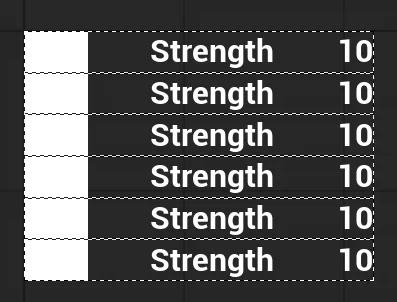
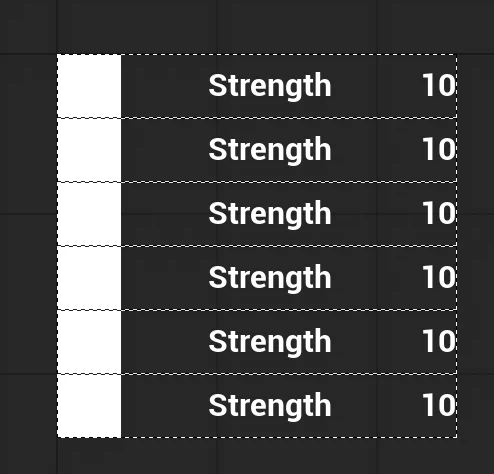
The player characteristics are displayed in small horizontal boxes containing an icon, stat name, and current value. This makes the player’s stats easier to understand than simply listing numbers.
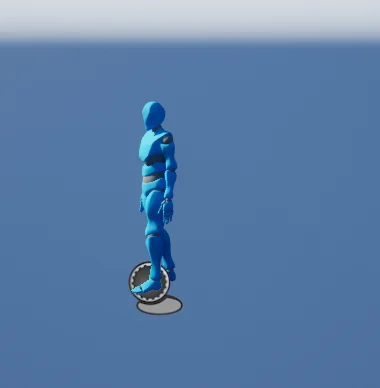
I also added a live player character visual to the inventory. To do this, I created a separate Blueprint using the character’s skeletal mesh, added a Scene Capture Component 2D, rendered it to a texture, converted that into a material instance, and displayed it inside a UI widget.
To improve performance, I added logic so the scene capture activates only when the inventory is opened and deactivates when the inventory is closed. This prevents the capture from constantly rendering in the background when it is not needed.
This was one of the more technical parts of the project and helped me understand how UI can display live 3D game content.


Text Tooltips
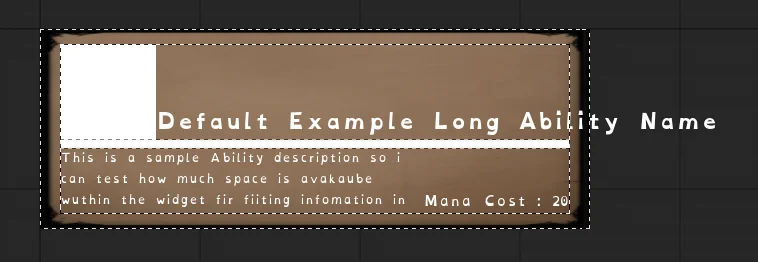
I created text tooltips for different parts of the UI.
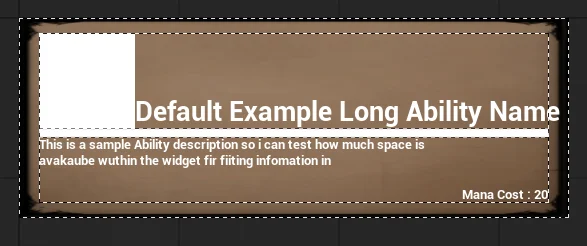
The ability tooltip displays:
- ability name
- ability image
- description
- mana cost
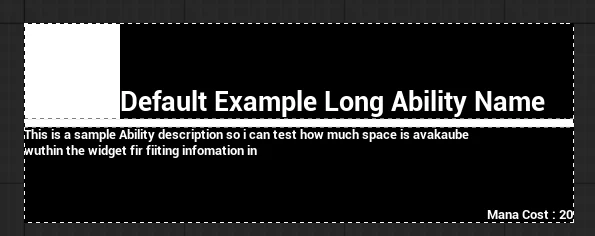
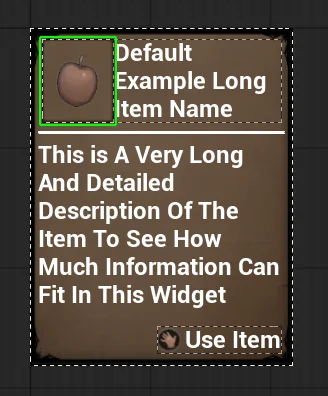
The inventory tooltip displays:
- item image
- item name
- item description
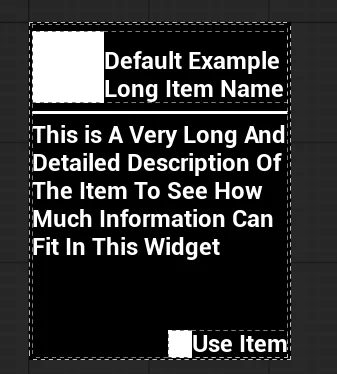
These tooltips improve usability because they give the player extra information only when needed. This keeps the main UI cleaner while still allowing the player to access more detail.
Controls UI
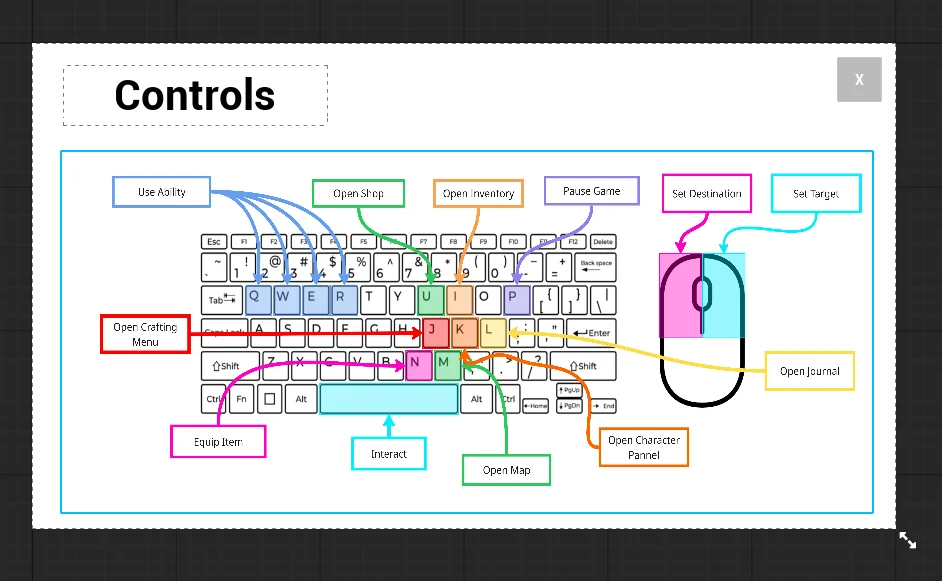
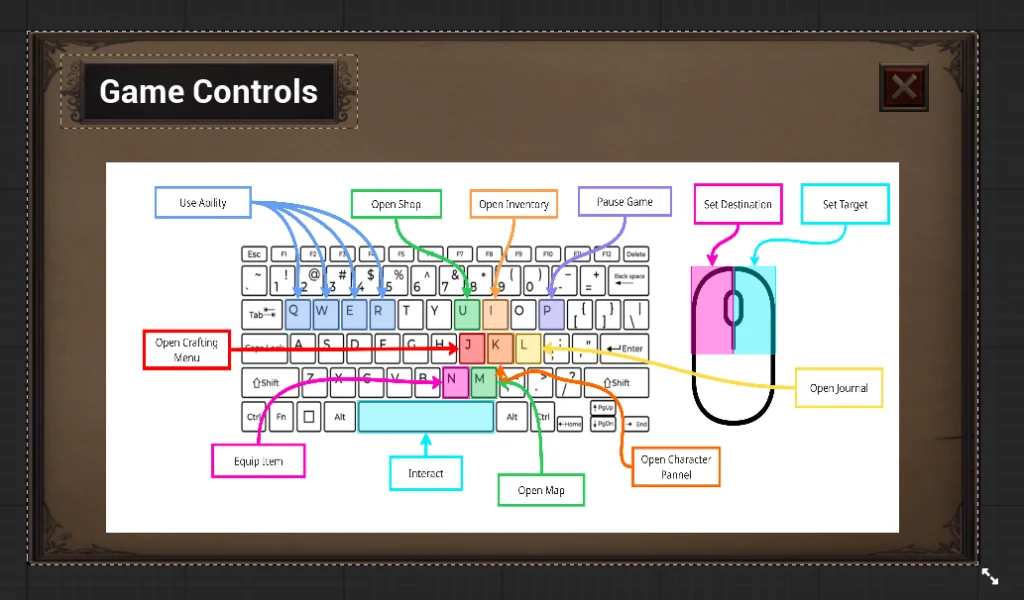
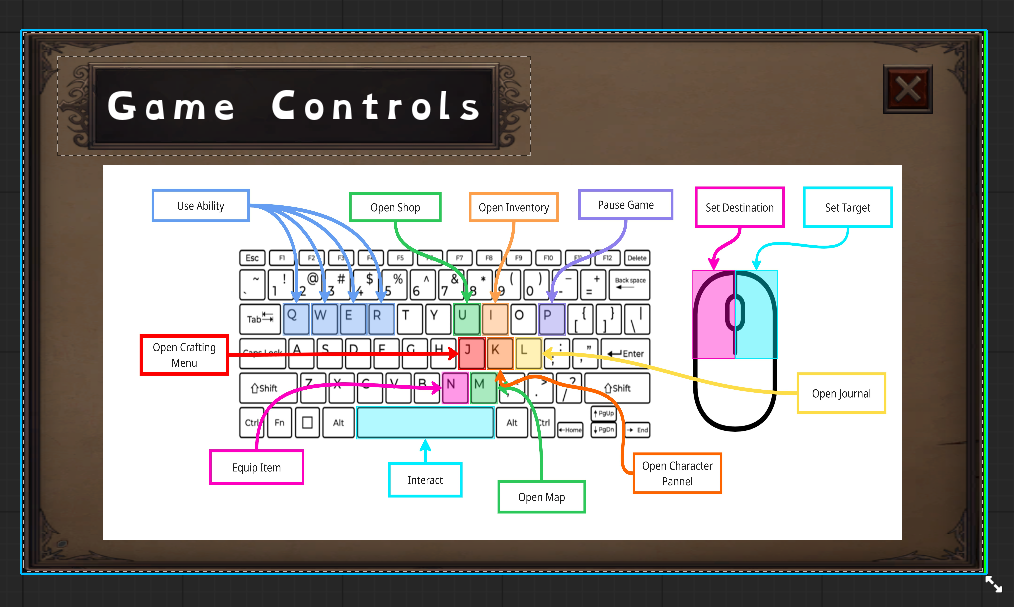
For the controls menu, I chose to create a visual diagram rather than allowing full control rebinding.
The controls screen shows the player what each input does, helping them understand how to play without needing to experiment.
This was a functional prototype, and I planned to test the colours and layout further. The main goal was to make the controls easy to understand and visually clear.
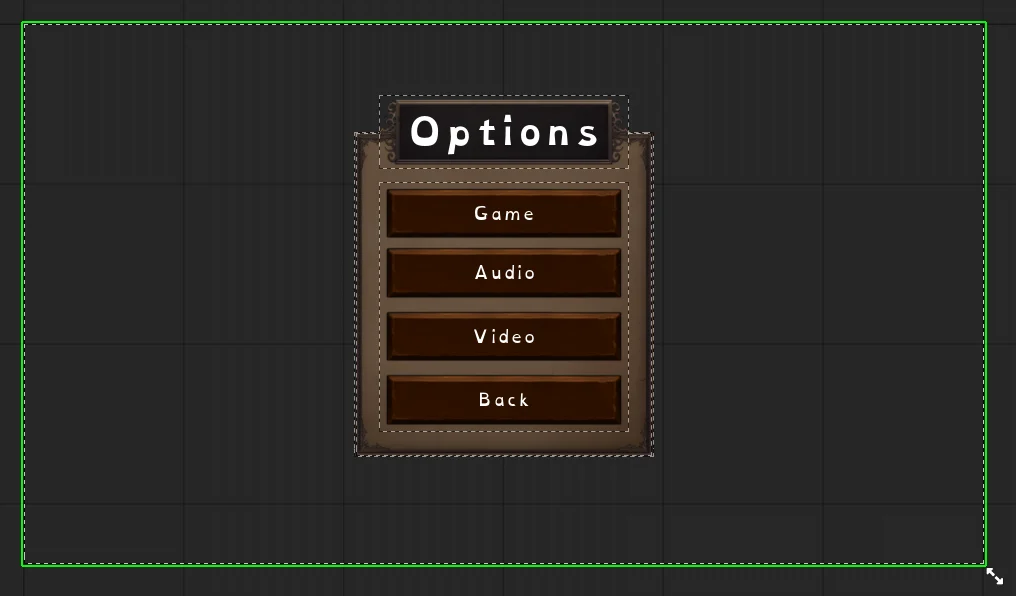
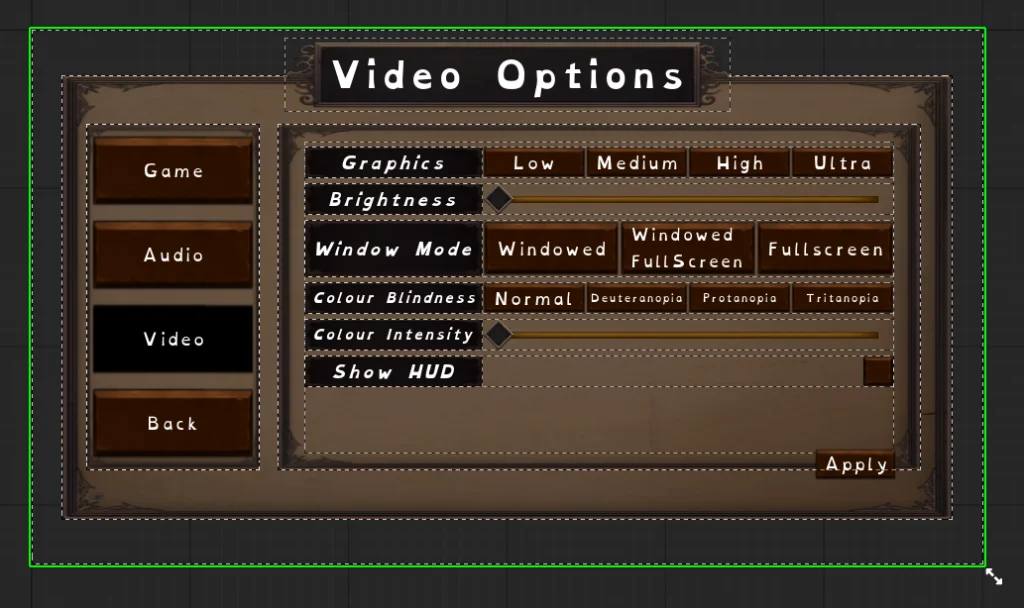
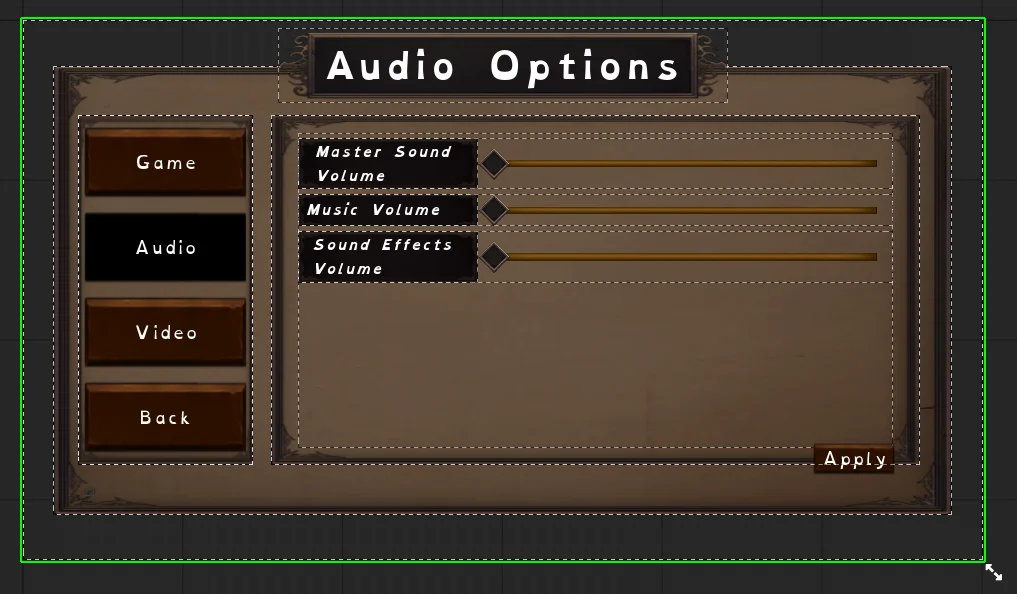
Options Menu and Game Instance
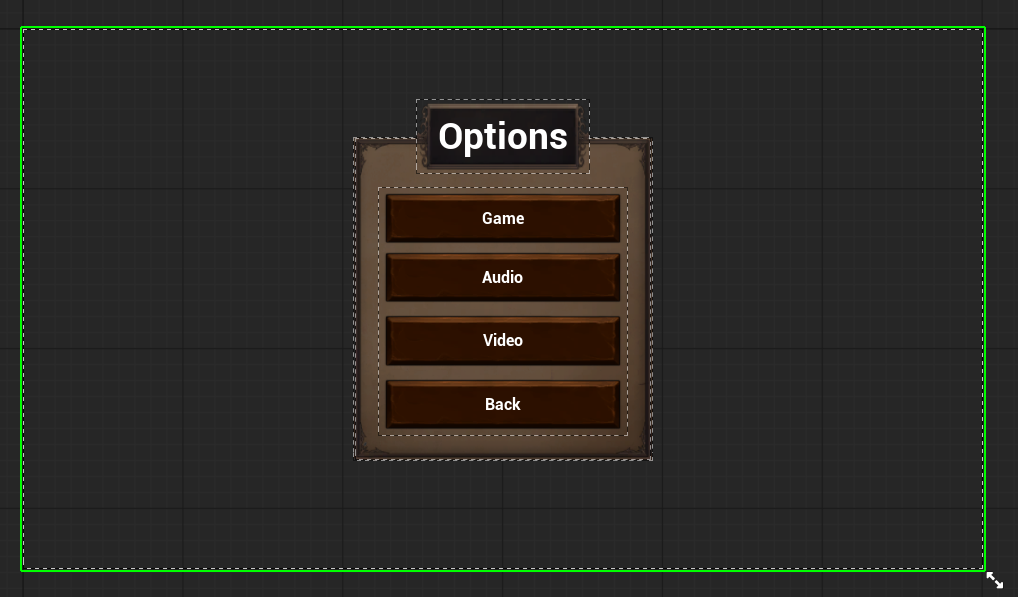
I worked on making the options menu save the player’s settings between levels.
To do this, I created a custom Game Instance in Unreal Engine. The Game Instance continues running when the game changes levels, making it useful for storing settings that need to persist.
This meant the player’s chosen options could carry over instead of resetting when a new level loaded.
This helped me understand that an options menu is not just a UI screen. It needs to connect to the wider game structure so the player’s choices are respected.
One challenge was understanding where the save and load logic should go, especially when connecting the options menu widgets to the Game Instance.
Decals and Ability Targeting Feedback
I worked on replacing the decals and line traces used for aiming and area-of-effect abilities.
The goal was to make ability targeting clearer and more reliable. By improving the decals, the player could better see where an ability would land or what area it would affect.
The line trace setup helped detect where the player was aiming and where the decal should appear in the world.
This improved visual feedback and made area-of-effect abilities easier to understand before activation.
UI Asset Pack Choice and Implementation
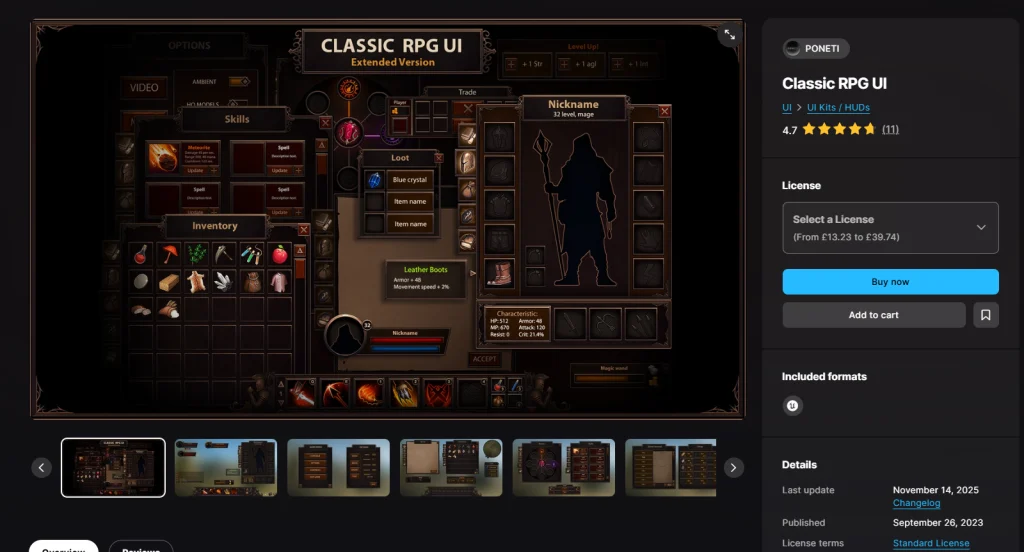
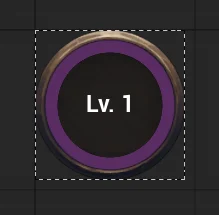
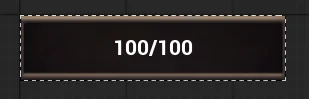
Once most of the UI was functional, I chose a UI asset pack to improve the visual presentation.
This was an important stage because I wanted the interface to feel more polished and consistent rather than relying on placeholder elements.
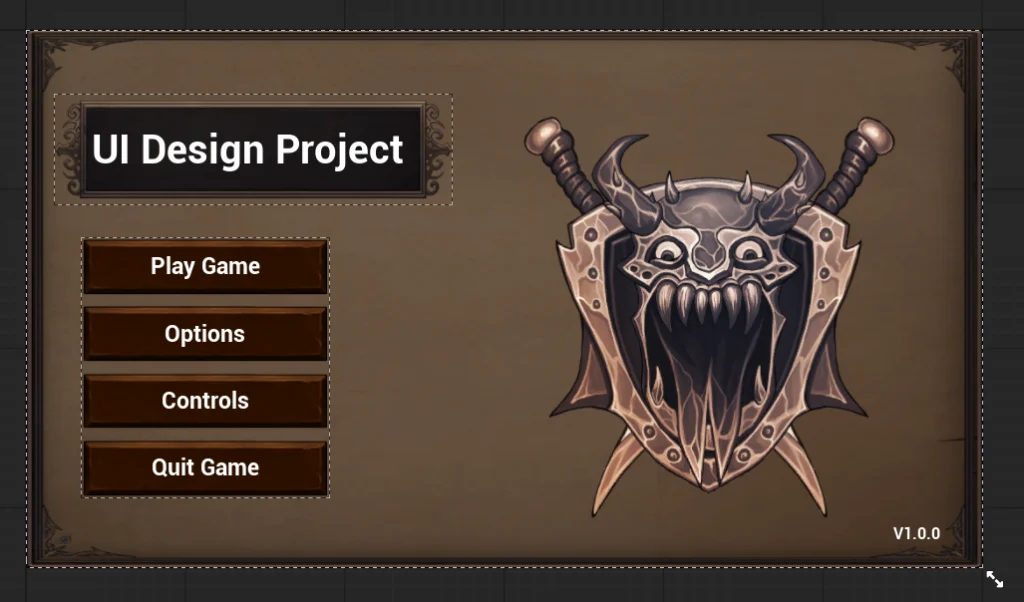
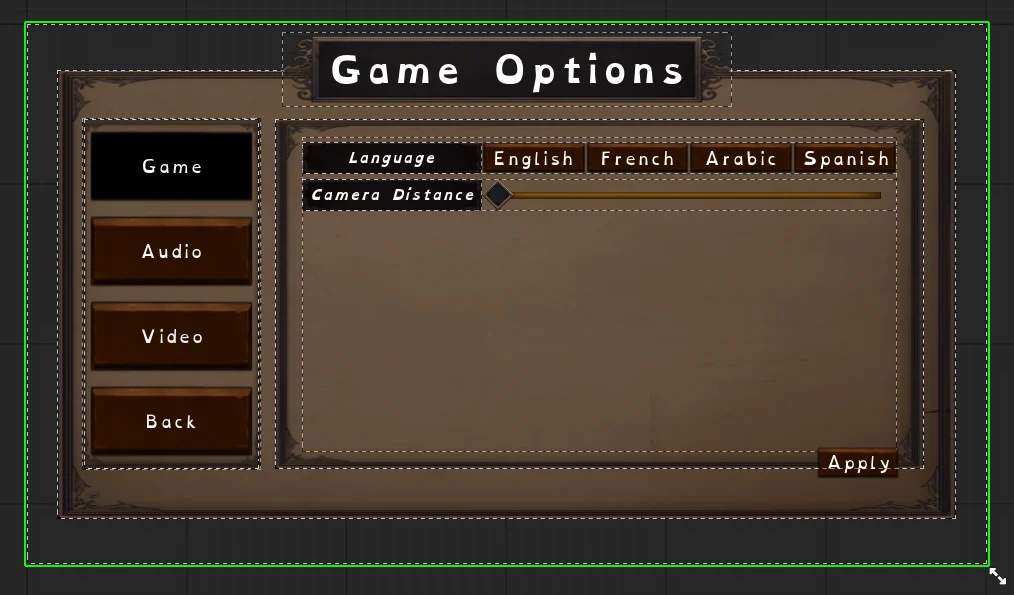
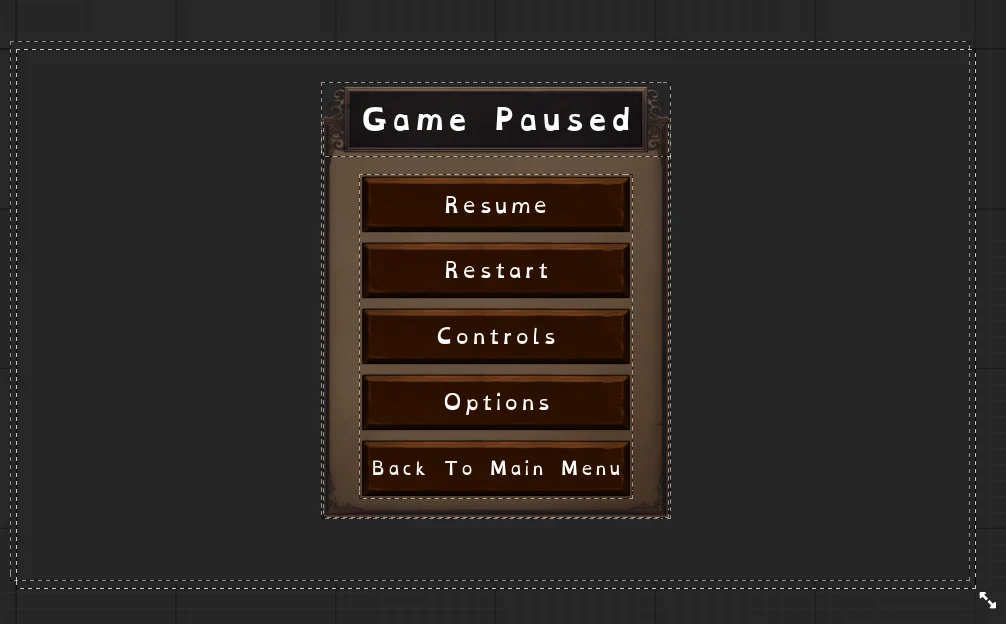
I then started replacing placeholder UI with:
- buttons
- panels
- borders
- icons
- background elements
- decorative UI assets
One challenge was making sure the assets fitted correctly into the layouts I had already created. Some elements needed resizing or repositioning so the UI stayed readable and clean.
This stage helped combine the functional and visual sides of the project.

Font Implementation and Accessibility
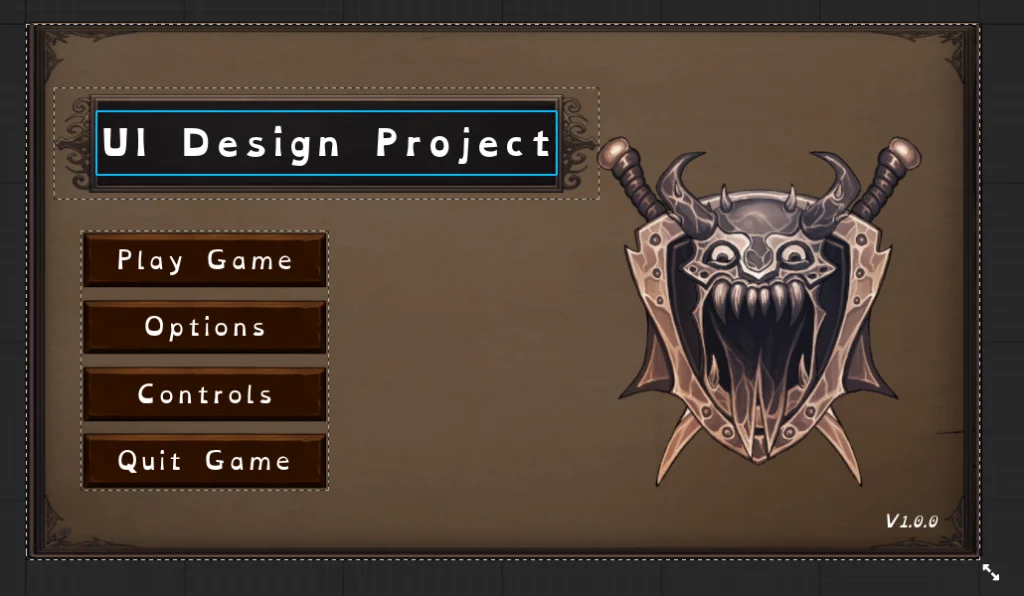
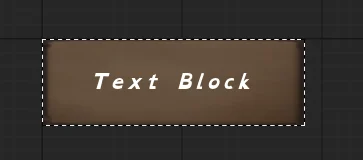
I tested different fonts with people in my lectures and decided to use OpenDyslexic as the main font for my UI.
One of the main reasons I chose this font is because I am dyslexic myself, so accessibility is something I wanted to consider throughout the project.
During testing, several people also preferred OpenDyslexic compared to the other fonts I showed them. This supported my decision and showed that it could improve readability.
Using OpenDyslexic helped make the interface more accessible and comfortable to read, especially across menus, tooltips, item descriptions, and controls.
UI Sound Implementation
I created a sound asset list and implemented audio feedback for the UI.
The sounds included:
- click
- hover
- equip
- open UI
- close UI
- switch UI
- main menu music
- level up
These sounds helped make the UI feel more responsive and polished.
Click and hover sounds give feedback when interacting with buttons. Open, close, and switch UI sounds make menu navigation feel smoother. Equip sounds make item interactions feel more satisfying. Main menu music helps set the tone before gameplay begins, and the level-up sound makes progression feel more rewarding.
This helped me understand that UI feedback is not only visual. Sound plays an important role in making menus feel responsive and satisfying.
Reflection & Key Learning
This project helped me understand UI design as a complete process, from research through to implementation.
At the start, I mainly thought about UI in terms of screens and visual layout. By the end, I had a much better understanding of how UI connects to gameplay systems, player feedback, accessibility, data structures, input, audio, and game feel.
The biggest lesson I learned is that every UI element needs a reason to exist.
A mini map should support navigation.
An ability bar should support combat decisions.
An inventory should support item management.
A controls menu should help the player feel comfortable.
An options menu should respect player preferences.
A font choice should support readability.
Sound should make interaction feel responsive.
I also learned how important iteration is. My first HUD design was too cluttered, and feedback helped me simplify it. Moving the ability buttons and mini map based on classmate feedback made the layout feel more natural. Updating the wireframes after lecturer feedback also made the design documentation clearer and more useful.
This project also improved my technical confidence in Unreal UI systems. I gained more experience with widgets, actor components, data structs, scene capture components, render textures, cooldown materials, minimap markers, tooltips, and persistent settings through Game Instance.
What I Would Improve Next
If I continued developing this project, I would improve it by:
- testing the UI with more players
- adding more accessibility settings
- testing colour palettes for colour blindness more thoroughly
- adding scalable text size options
- improving the options menu further
- adding full control rebinding
- polishing the controls diagram
- refining the mini map icons
- replacing temporary icons with final artwork
- improving ability cooldown animations
- fixing the ability projectile timing bug
- improving sound quality and consistency
- creating before-and-after comparisons for each major UI iteration
- testing the UI across more screen sizes and aspect ratios
I would also like to do more user testing specifically focused on readability, especially for the font, colours, inventory layout, and HUD placement.
Skills Demonstrated
This project demonstrates my ability to:
- research UI design across different games and genres
- analyse usability, utility, and user experience
- understand diegetic, non-diegetic, meta, and spatial UI
- create information architecture diagrams
- produce and iterate wireframes
- use anchors and layout containers
- implement HUD elements in Unreal Engine
- create health, stamina, and mana bars
- build ability buttons with cooldown indicators
- create a mini map with player, enemy, shop, and quest-giver markers
- create inventory UI and item hover information
- use structs and actor components to display gameplay data
- implement text tooltips
- use Scene Capture Component 2D for a live character preview
- create a circular XP and level display
- implement UI sounds
- apply an asset pack while maintaining readability
- use OpenDyslexic for accessibility
- save options through a custom Game Instance
- reflect on feedback and improve designs through iteration
Outcome
This project gave me a much stronger understanding of how UI design supports player experience.
The final work shows that I can research existing games, compare interface styles, plan UI structures, create wireframes, implement functional widgets, respond to feedback, and improve accessibility.
It also helped me understand that UI is not separate from gameplay. It connects directly to the player’s health, abilities, inventory, progression, navigation, settings, and feedback.
Overall, this module helped me develop as both a UI designer and a systems-focused designer, because I had to think about how information moves from gameplay systems into the interface and how that information helps the player make decisions.